Introduction
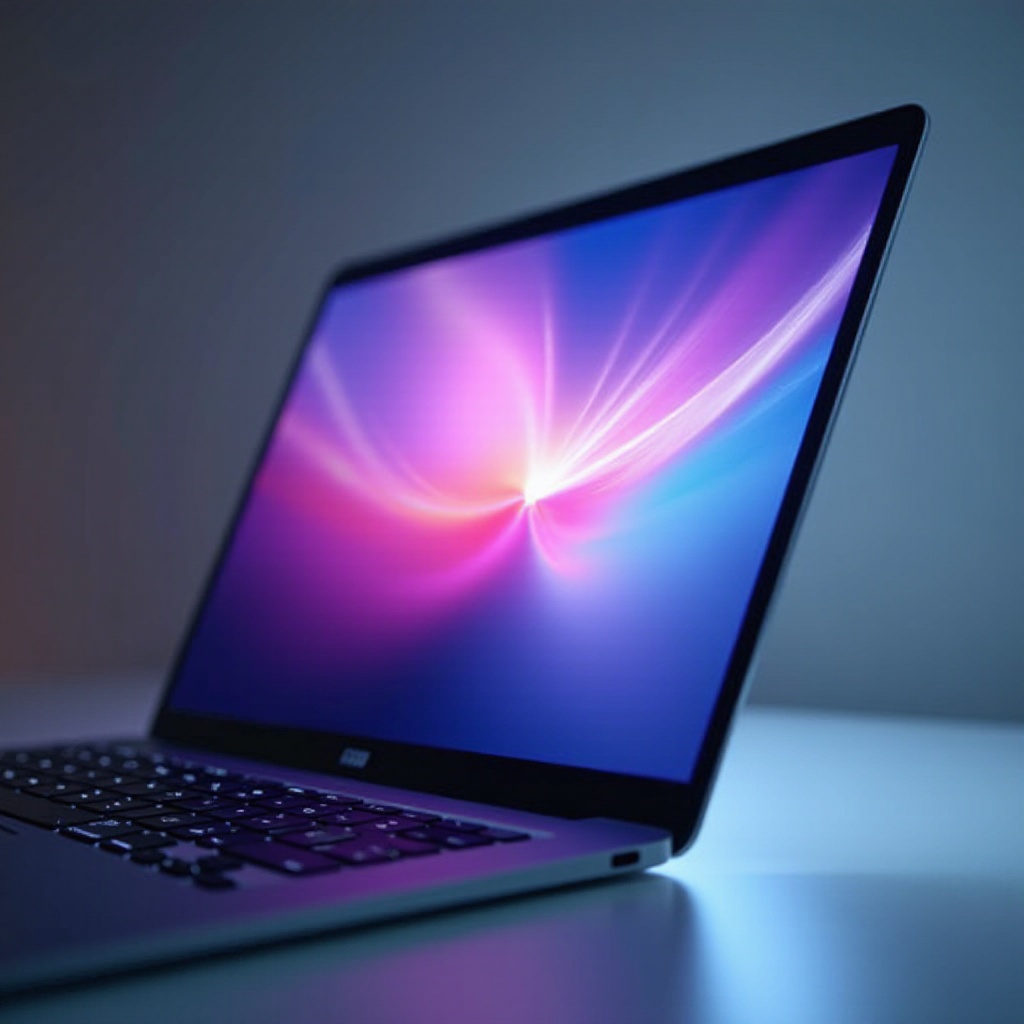
MacBook Air devices are designed without built-in CD drives to maintain a sleek profile and emphasize digital solutions. Despite this, CDs remain relevant for various tasks such as software installations and accessing stored data. This guide provides practical solutions for integrating CDs into your MacBook Air experience, ensuring efficient usage.

Understanding Why MacBook Air Does Not Have a Built-In CD Drive
Apple’s pursuit of portability and cutting-edge technology leads to the exclusion of optical drives from the MacBook Air. Digital formats are prioritized, reducing reliance on physical media and moving users toward online solutions. Understanding Apple’s design choices offers insight into adaptative methods for accessing media on laptops lacking internal drives.
In acknowledging the continued relevance of CDs, connecting external devices becomes critical. As we explore solutions, learn how to effectively use external CD drives with your MacBook Air for optimal media access.
Choosing the Right External CD Drive for MacBook Air
To ensure effective CD use, selecting the right external drive is crucial. Consider these factors:
- Compatibility: Ensure the drive supports macOS and offers USB or Thunderbolt ports.
- Speed: Choose a device with fast read/write speeds.
- Size and Weight: Opt for portable models.
- Reviews and Recommendations: Refer to expert opinions and user feedback.
Reliable models like the Apple USB SuperDrive and LG Electronics Ultra Slim DVD Drive offer efficiency. With your chosen drive ready, proceed to connect it to your MacBook Air to use CDs seamlessly.
Connecting and Setting Up an External CD Drive
Here are steps to connect and utilize an external CD drive with your MacBook Air:
- Verify Compatibility: Ensure the drive is compatible with macOS.
- Connect the Drive: Use USB or Thunderbolt cables.
- Install Drivers: If necessary, download drivers from the manufacturer.
- Recognize the Drive: Check connections if not automatically recognized.
- Insert a CD: Load the CD into the drive.
- Access Files or Install Software: Navigate the CD’s contents using Finder.
With your external drive set up, focus on installing software and addressing any issues that might arise.

Using CDs for Software Installation on MacBook Air
To install software using a CD, follow these steps:
- Insert the CD: Wait for recognition.
- Locate Setup File: Use Finder to find installation files.
- Run Installer: Double-click to initiate.
- Follow Prompts: Enter required information.
- Complete Installation: Eject the CD safely.
For troubleshooting, reconnect the drive, update drivers, or ensure macOS compatibility. Now, shift focus to digital alternatives.

Alternative Methods to CD Use on MacBook Air
Explore modern methods to reduce CD dependency:
- Digital Downloads: Access software online for easy updates.
- Cloud Services: Utilize Google Drive or Dropbox.
- USB Drives: Transfer large files efficiently.
These options reflect technological advancements, streamlining processes without needing a physical CD drive. Let’s explore other innovative uses for CDs.
Other Uses for CDs on MacBook Air
Despite the shift towards digital, CDs offer value:
- Burning CDs: Create discs using external drives.
- Data Transfer: Move files from CDs to your laptop.
- Archiving: Maintain offline data access.
These methods help optimize media use and data storage, blending traditional formats with modern technology.
Conclusion
Utilizing CDs on MacBook Air involves adopting external drives and modern solutions. As physical media becomes less common, understanding its application within new technology ensures efficient use. Embrace digital alternatives to enhance media consumption and access vital information.
Frequently Asked Questions
How can I connect an external CD drive to my MacBook Air?
Ensure compatibility with macOS, then connect via USB or Thunderbolt ports. Install drivers if required for proper functioning.
Is there software available that can help manage CDs without a built-in drive?
Absolutely. Applications like Toast Titanium and Burn facilitate CD management and are compatible with macOS.
What alternatives exist if I cannot use an external CD drive?
Digital downloads, cloud services, and USB drives offer efficient alternatives for software access and data backup.