Introduction
For avid Xbox One gamers, few things are as frustrating as a controller that flashes but fails to connect. This blinking light usually signifies a pairing problem or a disconnection during gameplay. Understanding the reasons behind this issue and how to effectively resolve it can significantly improve your gaming experience. Promptly addressing the problem, whether a minor glitch or something more intricate, ensures uninterrupted play.
A flashing light on your controller is often an indication of a connectivity issue, though the cause can range from simple battery-related problems to more complex hardware faults. Many of these concerns can be resolved at home through a series of troubleshooting steps, both basic and advanced. Knowing the causes and solutions can help you reconnect your controller quickly and easily.

Understanding Xbox One Controller Flashing Patterns
The blinking lights on an Xbox One controller are diagnostic tools. A single continuous blink indicates that the controller is searching for a console to connect to. If this light persists, it signifies a failure to establish a connection. Understanding these patterns is invaluable for diagnosing connectivity issues and pointing out underlying problems.
Conversely, sporadic flashes might suggest low battery levels or an interrupted communication line between the controller and console. These visual signals are meant to deliver immediate feedback on the controller’s status, allowing users to quickly pinpoint the issue and take corrective action.
Common Causes for Connectivity Issues
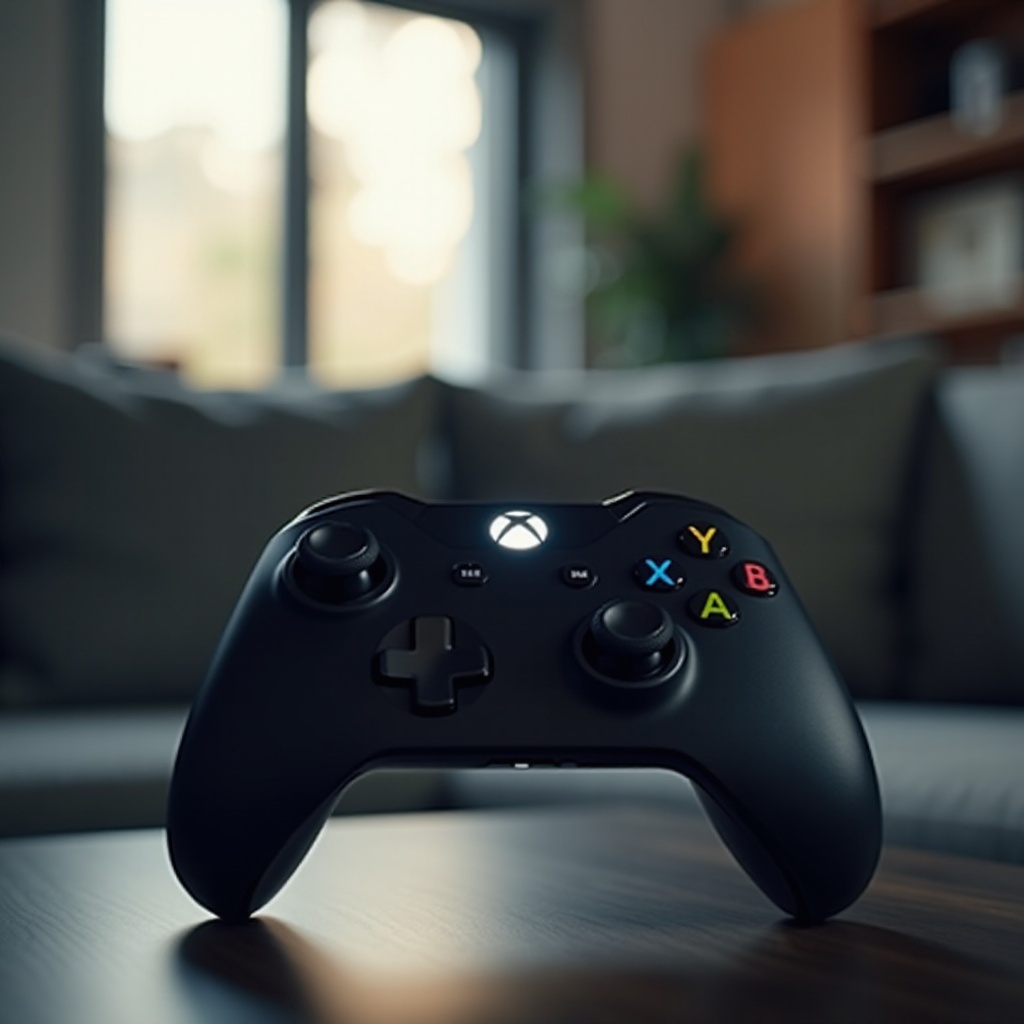
Connectivity issues generally stem from several sources. Common causes include depleted batteries or interference from wireless devices. Additionally, software glitches or outdated firmware can play a role in disrupting the connection. Even the physical distance between the console and controller or obstacles can contribute.
Being familiar with these potential problems is a crucial first step in identifying the actual cause of the issue. Addressing each possibility methodically allows you to resolve connections hiccups efficiently and resume your gaming sessions promptly. Knowing these problems also enables effective troubleshooting when they appear.
Basic Troubleshooting Steps
When encountering flashing and connection issues, start with basic techniques:
-
Power-Cycling the Controller
Completely turn off the controller by holding down the Xbox button for 10 seconds. Once powered down, wait a few seconds, then turn it back on. This simple restart often clears temporary issues.
-
Checking Battery Health
Verify the batteries’ placement and charge levels. If using rechargeable batteries, ensure they’re fully charged or try new ones to rule out power supply issues.
These fundamental steps often help resolve the problem quickly.
Advanced Wireless Connection Solutions
If basic steps fail, delve into more advanced solutions:
-
Re-Syncing the Controller
Press and hold the sync buttons on both the controller and the console until the blinking light is steady. This action re-establishes the connection, solving syncing problems.
-
Eliminating Wireless Interference
Ensure no other devices interfere with the signal by disabling nearby electronics. Moving closer to the console can also strengthen the wireless link.
Addressing these complex causes helps solidify a reliable wireless connection between your controller and console.
Wired Connection Troubleshooting
Exploring wired connection options can be an effective remedy:
-
Utilizing a USB Cable
Connect the controller to the console using a cable to sidestep wireless concerns and assess if the issue is wireless-specific.
-
Testing Different Cables
If one cable doesn’t work, try another. Not all USB cables are equal; a faulty or incorrect one might be the issue.
Using a wired connection can quickly isolate and resolve wireless connection problems.
Software and Firmware Updates
Outdated software can impair your controller’s functionality. Navigate to the console’s settings and ensure you have the latest updates. Also, verify and install any firmware updates for the controller. Doing this can resolve incompatibility issues, restoring normal operation. Keeping your console and accessories updated minimizes future connectivity disruptions and boosts overall performance.
Hardware Inspection and Repair
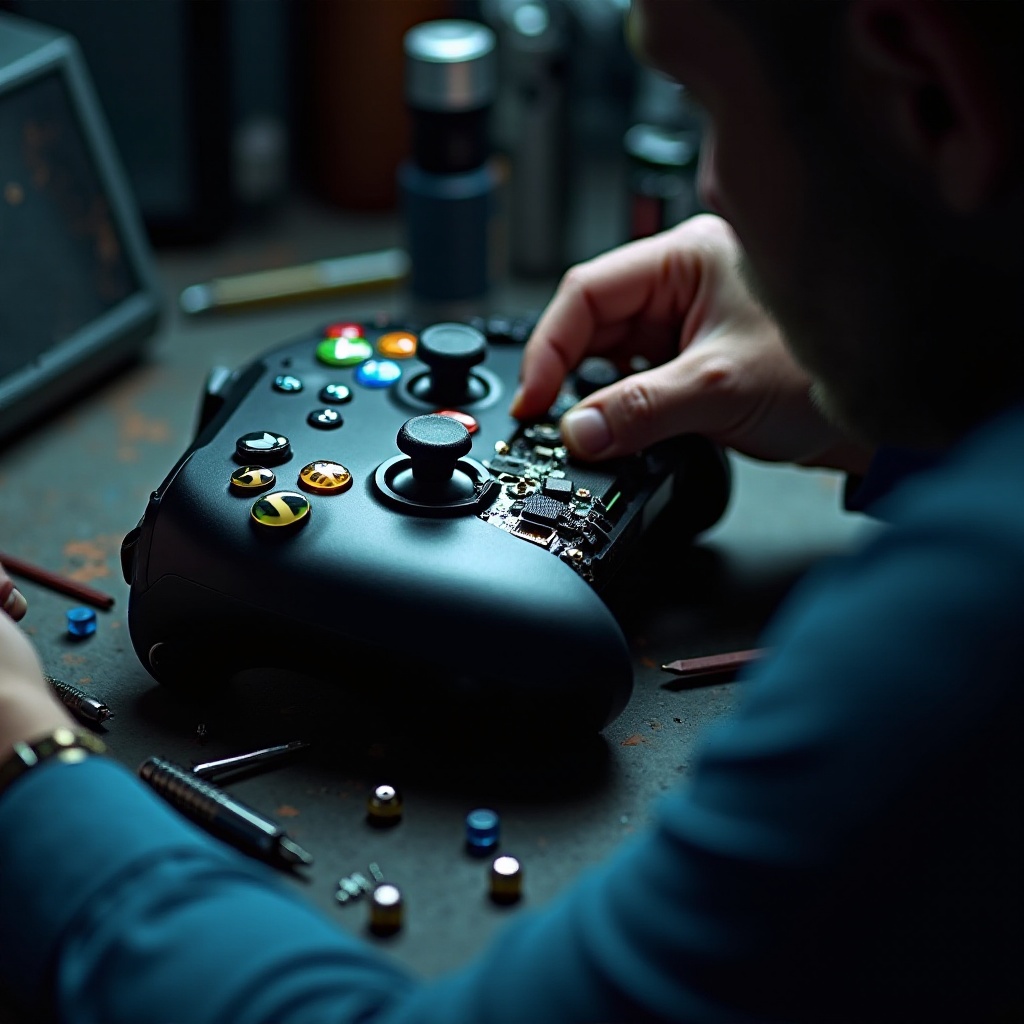
If the problem persists, inspect the controller and console for physical damage. Look for loose battery contacts or visible damage that might hinder connectivity. If any damage is detected, consider professional repair services. Sometimes internal hardware issues need expert attention to prevent further harm.
Conclusion
Dealing with a flashing Xbox One controller that won’t connect can be exasperating, but with the right troubleshooting approach, this issue can be solved. By identifying the root cause and applying suitable solutions, you can quickly return to your gaming activities. Regular updates of your console and controller help avoid these issues, ensuring smooth gameplay. Taking the initiative now will ensure a trouble-free gaming experience in the future.
Frequently Asked Questions
How do I reset my Xbox One controller?
Hold the Xbox button for 10 seconds to reset the controller. This simple process often resolves many issues.
Can outdated firmware cause connectivity issues?
Yes, outdated firmware can disrupt connections. Regularly update your controller to maintain optimal performance.
Is it possible for other devices to interfere with my controller’s connection?
Absolutely. Electronic gadgets like Bluetooth devices or routers can interfere with your controller’s wireless signal. Turn them off or move the Xbox closer to reduce interference.