Introduction
Echo issues on an iPhone can disrupt communication and affect overall user experience, presenting as repeated sounds or feedback during calls and app usage. This article explores the causes of echo, offers troubleshooting solutions, shares preventive measures, and explains how to maintain audio clarity on your iPhone. By understanding these aspects, you can ensure optimal functioning of your device and enhance your mobile experience.
Causes of Echo on iPhone
Identifying the reasons behind echo on your iPhone is crucial for addressing the problem effectively. These causes can be broadly categorized into hardware issues, software glitches, and network interference, each requiring different approaches.
Hardware-Related Causes
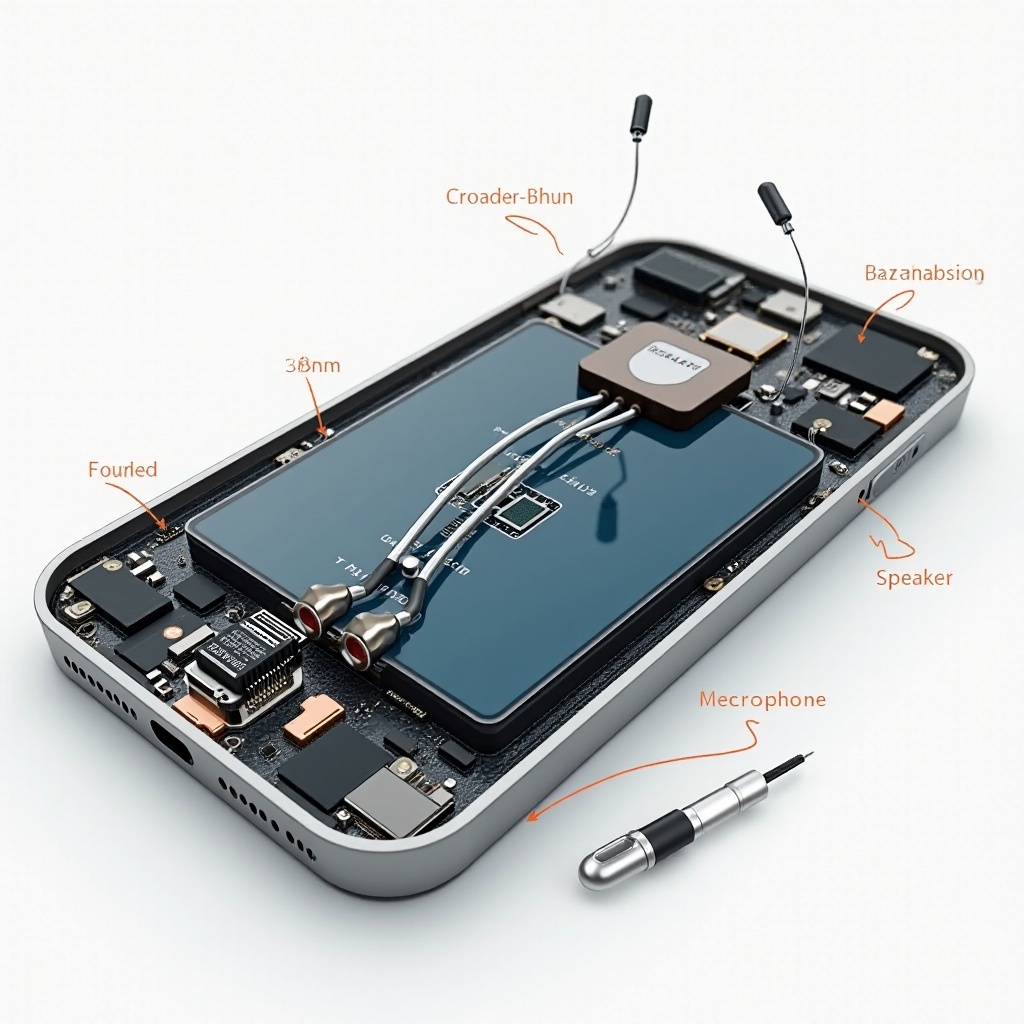
Physical components such as the microphone and speakers can contribute to echo if damaged or malfunctioning. Even minor defects or wear can lead to feedback sound. Regular maintenance and protection can prevent these issues.
Software Glitches
Echo may also arise due to software bugs or outdated versions. The iOS system manages audio processes, and conflicts within the software, including issues with third-party apps, can cause disturbances in sound output. Keeping your device updated helps mitigate these glitches.
Network Interference
A stable network connection is vital for clear audio, and interference from other devices or poor signal strength can lead to echo. Ensuring a strong Wi-Fi or cellular connection minimizes the risk of audio feedback.
Understanding these diverse causes prepares you to tackle echo issues. With this knowledge, we can move on to scenarios where echo typically occurs, offering more focused solutions.
Common Scenarios for Echo Occurrence
Echo can appear in different situations, each revealing particular challenges that can guide troubleshooting procedures.
Echo During Phone Calls
Phone call interference remains one of the most typical scenarios for echo. It often results from environmental factors such as acoustics, device handling, or poor network reception. Addressing such issues can significantly reduce the likelihood of echo.
Echo in Apps and Features
Echo also affects audio-intensive apps such as voice recording or video conferencing tools. App-specific settings or compatibility issues can result in unwanted feedback. Regularly updating apps helps minimize these problems.
Echo With Accessories
Bluetooth headsets or wired headphones may introduce echo if there’s a problem with the connection or hardware fault. Ensuring compatibility and proper usage can help sidestep echo problems.
Armed with an understanding of these scenarios, we can explore solutions designed to resolve echo, ensuring your device’s audio performance is the best it can be.
Troubleshooting Echo on iPhone
Resolving echo requires pinpointing the source and applying specific fixes to restore normal function. Follow these steps:
- Quick Fixes
- Restarting your device resets temporary glitches.
- Adjusting call volume may prevent audio loops causing echo.
-
Switch between audio sources such as using the earpiece instead of speakerphone.
-
Updating and Resetting Settings
- Ensure your iOS is updated to tackle potential software bugs.
- Resetting network settings can relieve interference affecting call quality.
-
Check and update apps to eliminate compatibility issues.
-
Advanced Solutions
- Temporarily disable noise cancellation to see if it affects sound clarity.
- Conduct a hard reset if persistent software problems occur.
- Seek Apple Support for hardware issues requiring professional repair.
With these solutions in mind, prevention is the next step to ensure echo problems don’t recur, keeping your iPhone running smoothly.
How to Prevent Echo on iPhone
Preventive measures are crucial in sustaining a high-quality audio experience. These simple strategies can help:
Maintenance Tips for Hardware
Regularly cleaning your device’s audio components and protecting it from physical damage can prevent echo-related issues.
Regular Software Updates
Enable automatic updates to ensure your device runs the latest iOS version, resolving potential software conflicts and improving performance.
Optimal Settings for Best Audio Quality
Configure your iPhone’s audio settings to align with usage patterns, disable unnecessary permissions affecting sound, and use accessories designed for Apple compatibility.
Taking these steps ensures your iPhone remains free from echo and maintains excellent audio clarity.
Conclusion
Echo on an iPhone disrupts functionality but is manageable with targeted solutions. Understanding the causes and employing troubleshooting techniques can restore your device’s audio quality. Proactive preventive measures keep future issues at bay, ensuring a clear communication and app usage experience. For persistent problems, consulting Apple Support ensures your device receives necessary care and repair.
Frequently Asked Questions
How do I permanently fix echo on my iPhone?
Permanent fixes involve addressing hardware issues and maintaining regular software updates. Professional repairs may be necessary for ongoing problems.
Can accessories cause echo during iPhone calls?
Yes, accessories like headphones can introduce echo if they’re incompatible or have faulty connections. Proper pairing and quality checks are recommended.
Is echo a sign of a hardware problem on iPhone?
Echo can be a sign of hardware issues, but may also result from software glitches. Persistent echo should be examined by a professional technician.