
Introduction
Losing an Apple Watch can be frustrating, especially when you depend on it for daily convenience. Fortunately, your iPhone offers a seamless solution for tracking down your missing device. Apple’s interconnected ecosystem provides robust features that allow for efficient device retrieval. Knowing how to leverage these tools ensures you can quickly find your watch and regain peace of mind.
In this guide, we’ll go through the necessary steps to set up your devices for optimal tracking. You’ll learn the detailed procedure for locating your watch and overcoming potential hurdles. To round things off, we’ll explore preventive measures to avoid future loss and give you confidence in managing your devices.
Preparing Your Devices for Location Tracking
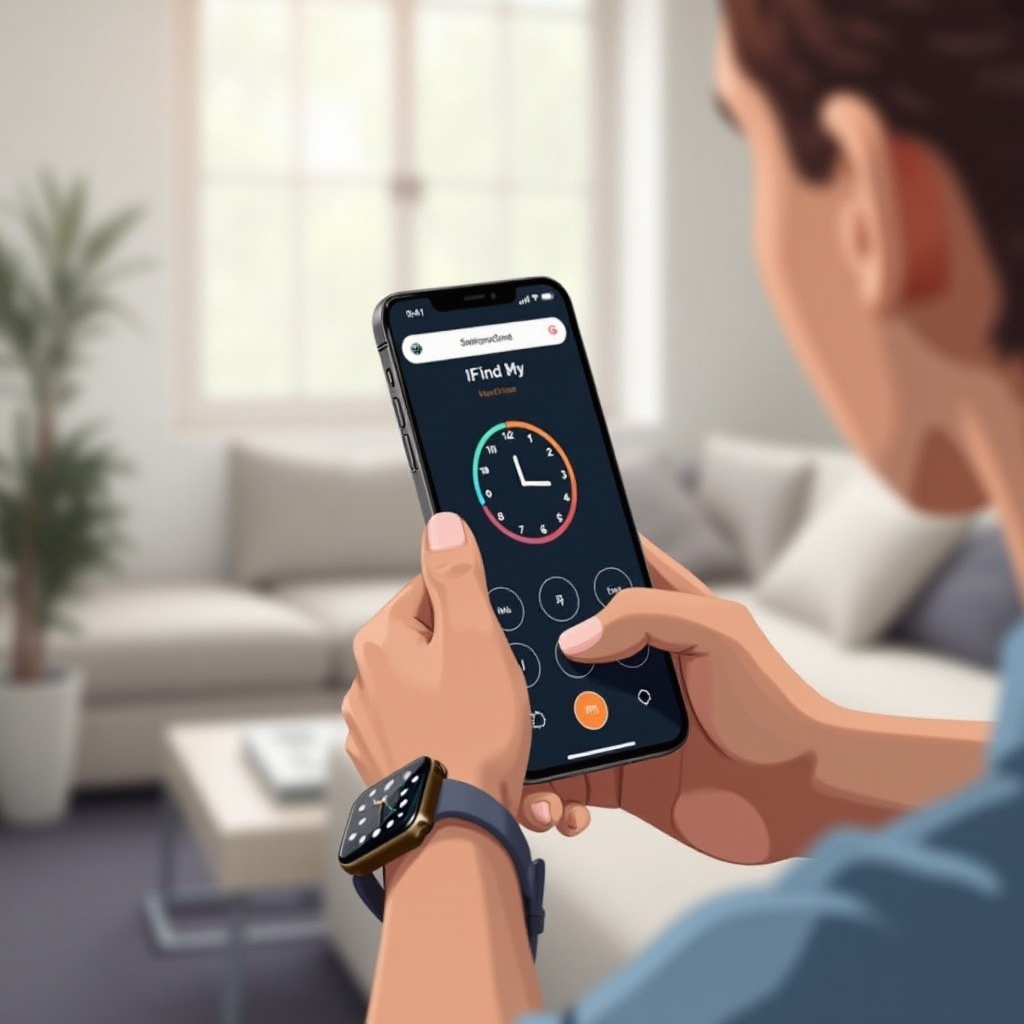
Before attempting to locate your Apple Watch, ensure your devices are properly set up with Apple’s powerful ‘Find My’ application. Follow these instructions:
- Set Up Find My iPhone and Find My Watch:
- Open the ‘Settings’ app on your iPhone.
- Tap your name at the top, and then ‘Find My’.
-
Enable ‘Find My iPhone’ and ‘Find My Watch’.
-
Enable Bluetooth and Location Services:
- Go to ‘Settings’ > ‘Privacy’ > ‘Location Services’.
- Toggle ‘Location Services’ to on.
-
Navigate back to ‘Settings’, tap ‘Bluetooth’, and confirm it’s active.
-
Update Your Devices:
- Keeping your software updated ensures optimal tracking.
- Check for updates via ‘Settings’ > ‘General’ > ‘Software Update’.
With your devices configured, you’re equipped to locate your Apple Watch efficiently. Next, let’s explore the step-by-step process to locate your device using these settings.
Step-by-Step Guide: Locating Your Apple Watch Using Your iPhone
Now that your devices are ready, use the ‘Find My’ app to track down your Apple Watch. Here’s how:
- Access the Find My App:
- Launch the ‘Find My’ app on your iPhone.
-
Sign in with your Apple ID if needed.
-
Navigate Through Your Device List:
- Tap the ‘Devices’ tab at the bottom.
-
Locate your Apple Watch among the listed devices.
-
Utilize the ‘Play Sound’ Feature for Precision:
- Select your Apple Watch from the list.
- Tap ‘Play Sound’.
- Your watch will emit a sound to aid your search, even if it’s on silent.
Following these steps facilitates the effective tracking of your Apple Watch’s location. However, some users may encounter issues during this process, which we’ll address in the next section.
Troubleshooting Common Issues
While trying to locate your Apple Watch, you might face obstacles. Here are solutions for common issues:
- When Your Apple Watch is Offline:
- An offline watch may lack power or network connectivity.
-
Wait until your watch becomes available online and make another attempt.
-
Connectivity and Network Errors:
- Ensure both your iPhone and Apple Watch have active internet access.
-
If issues persist, reset network settings by heading to ‘Settings’ > ‘General’ > ‘Reset’ > ‘Reset Network Settings’.
-
Resetting Network Settings:
- This can resolve lingering connectivity issues.
- Be aware it will erase previously saved Wi-Fi passwords.
By resolving these common issues, you can take full advantage of Apple’s tracking features. If challenges persist, consider alternative methods detailed in the following section.

Alternative Methods to Locate Your Apple Watch
If your Apple Watch remains elusive, try these additional strategies:
- Using Third-Party Apps:
- Some applications utilize Bluetooth scanning to help find your watch.
-
Ensure to download apps from the App Store that are well-reviewed.
-
Contacting Apple Support:
- If other methods fail, reach out to Apple Support.
- They offer device-specific guidance and troubleshooting.
Exploring these methods boosts your chances of recovering your missing device. Ultimately, prevention is the most effective strategy, as covered in the following section.
Enhancing Security and Prevention Tips
To prevent future incidents, implement these security measures and tips:
- Enable Security Settings on Your Devices:
- Set a strong passcode on your Apple Watch.
-
Activate ‘Activation Lock’ for security against theft.
-
Tips for Avoiding Future Loss:
- Charge your watch regularly to prevent it from turning off.
-
Set up phone alerts for when you move out of range from your watch.
-
Regular Device Check-Ups:
- Consistently update your devices and review their settings to maintain discoverability.
By following these preventive measures, you minimize the risk of losing your Apple Watch in the future. Be proactive in safeguarding your devices to save time and stress.
Conclusion
Misplacing your Apple Watch doesn’t have to be a source of anxiety. With Apple’s suite of tracking tools and these proven strategies, you can quickly relocate your device and ensure it remains secure. Routine updates and setting checks are crucial for maintaining trackability. Stay proactive with your device’s security, and you’re less likely to face loss. Let these steps guide your confidence in managing your Apple Watch, knowing it’s always just a few taps away.
Frequently Asked Questions
Why Can’t I See My Apple Watch on My iPhone?
Your Apple Watch may not appear if it’s powered off or not connected to a network. Ensure both devices have internet access and try again.
How Do I Enable Find My iPhone?
Go to ‘Settings’ on your iPhone, tap your name, and select ‘Find My’. Make sure that ‘Find My iPhone’ is turned on.
Can I Track My Watch If It’s Switched Off?
You can only locate a switched-off watch if it logged a recent location while powered on. Otherwise, you’ll need to wait until it’s turned back on.