Introduction
Your iPad camera could suddenly fail to work just when you need it most. It’s essential to promptly diagnose and address this issue to regain functionality and continue capturing your favorite moments. The problem might be rooted in software glitches, hardware malfunctions, or conflicts between applications. Understanding the underlying causes can set you on the right path to resolving your camera woes.
Common Causes of iPad Camera Malfunctions
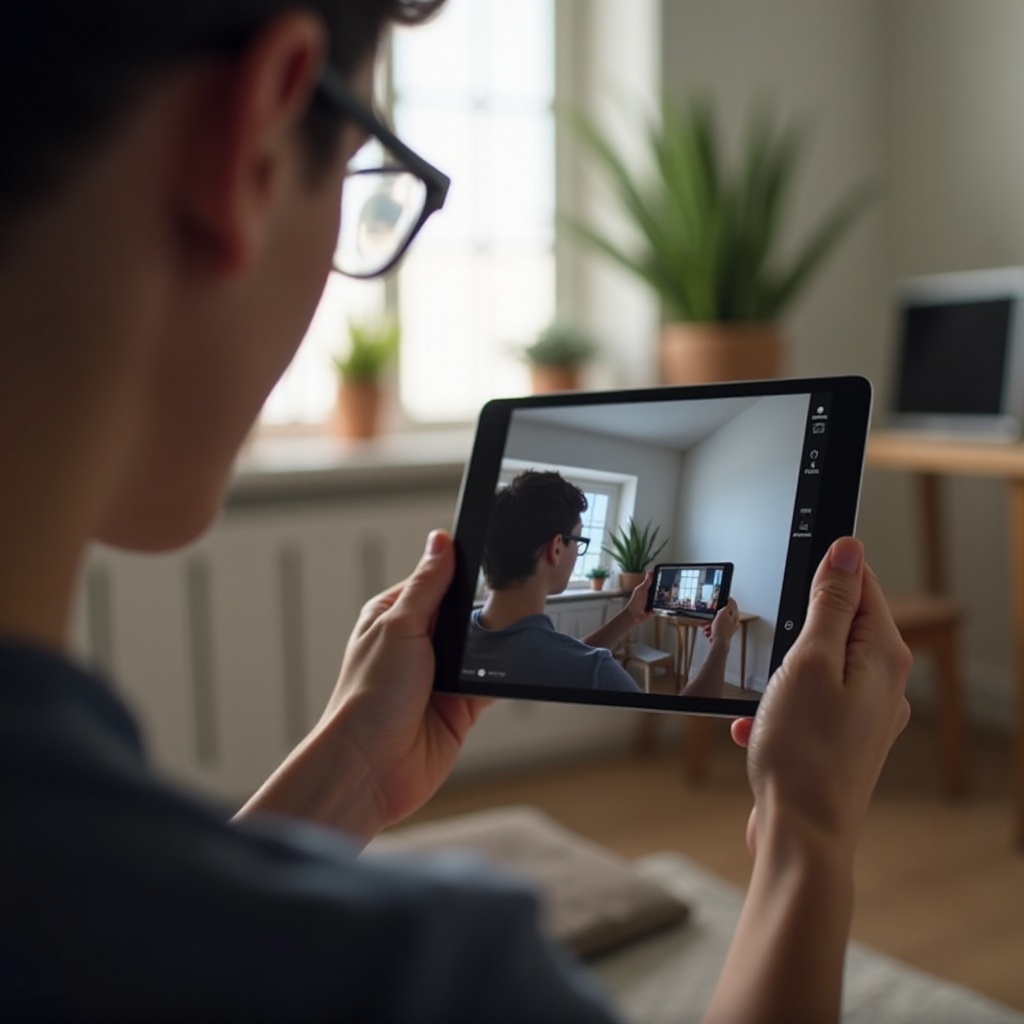
Problems with your iPad camera can arise from a variety of factors, knowing these can guide you toward the most effective solutions.
- Software issues are among the most frequent culprits. Updates to the iOS can occasionally introduce bugs that temporarily hinder camera functions.
- Hardware problems, often due to accidents or wear and tear, can physically damage your camera or its components.
- App conflicts might also be the root cause. When apps have misconfigured permissions, they can interfere with the proper functioning of the camera.
Connecting the dots between these causes can help you to tailor a specific strategy for troubleshooting and eventually repairing your iPad camera.
Initial Troubleshooting Steps
Before diving into more complex solutions, it’s wise to start with some straightforward troubleshooting steps. These methods can often resolve minor issues without much hassle.
- Check Camera Permissions: Ensure the Camera app has the required permissions by navigating to Settings > Privacy > Camera and verifying app access.
- Restart Your Device: Hold down the power button and slide to power off. Wait a few seconds before turning it back on. This can resolve transient software issues.
- Update iOS System: Ensure your iPad runs the latest iOS version. Go to Settings > General > Software Update to initiate updates.
These simple actions can sometimes fix the camera problem. Should the issue persist, more advanced troubleshooting might be needed.
Advanced Solutions for Software Problems
If the initial steps do not yield results, you may need to implement advanced software solutions. These can provide a deeper reset of key system functions.
- Resetting All Settings on your iPad can clear many software-related issues. Go to Settings > General > Reset > Reset All Settings. This won’t erase your data but will return settings to default.
- Reinstalling Applications can remove glitches tied to app functionality. Identify problematic apps and consider uninstalling and then reinstalling them.
- Restoring Your iPad to Factory Settings is a comprehensive approach to eliminate persistent issues. Before doing this, back up your data, then proceed via Settings > General > Reset > Erase All Content and Settings.
These advanced steps aim to rectify stubborn software issues, helping restore your camera’s functionality.
Handling Hardware Issues and Repairs
If software solutions are ineffective, the problem might lie in the hardware. Addressing these requires careful inspection and possibly professional repairs.
- Inspect your iPad for physical damage. Check the camera area for visible damage, such as cracks or dents.
- Clean the Camera Lens with a microfiber cloth to remove dirt and smudges. This can dramatically improve image clarity.
- Professional Repair Options should be considered if damage is extensive. Contact Apple Support or a certified technician to diagnose and repair hardware issues.
By addressing hardware concerns promptly, you reassure a more comprehensive and lasting resolution to your iPad’s camera problem.

Tips to Prevent Future Camera Issues
Securing the longevity of your iPad camera involves adopting preventative strategies.
- Keep iOS Updated to enhance performance and security. Routine updates reduce the potential for software-related camera issues.
- Avoid Installing Untrusted Apps that may conflict with the camera. Choose apps from reputable developers to minimize risks.
- Proper Device Care, including using protective cases and cautious handling, prevents physical damage that could impair camera functionality.
Utilizing these preventative measures ensures your iPad’s camera continues to function optimally, reducing the probability of future issues.
Conclusion
The iPad camera is integral to the device’s functionality, making it crucial to address issues as they arise. Whether through basic troubleshooting techniques or more advanced solutions, knowing how to manage software and hardware problems ensures your iPad continues to serve you well. By taking the necessary steps, you restore vital features and enhance your user experience.
Frequently Asked Questions
How do I reset my iPad camera settings?
Navigate to Settings > General > Reset > Reset All Settings. This option won’t erase your data but will revert all settings to default.
Can third-party apps cause camera problems?
Yes, third-party apps might conflict with camera operations. Ensuring app permissions are correct can mitigate this issue.
How do I contact Apple Support for hardware issues?
Visit the Apple website or use the Support app to connect with professionals who can help diagnose and repair hardware problems.