Introduction
Resetting your Google Pixel Buds Pro can often be the solution to persistent audio or connectivity issues. A factory reset returns your earbuds to their default settings, resolving glitches and ensuring optimal performance. This guide walks you through each step of resetting your Google Pixel Buds Pro and highlights necessary actions to take post-reset.
Understanding the Need for a Factory Reset
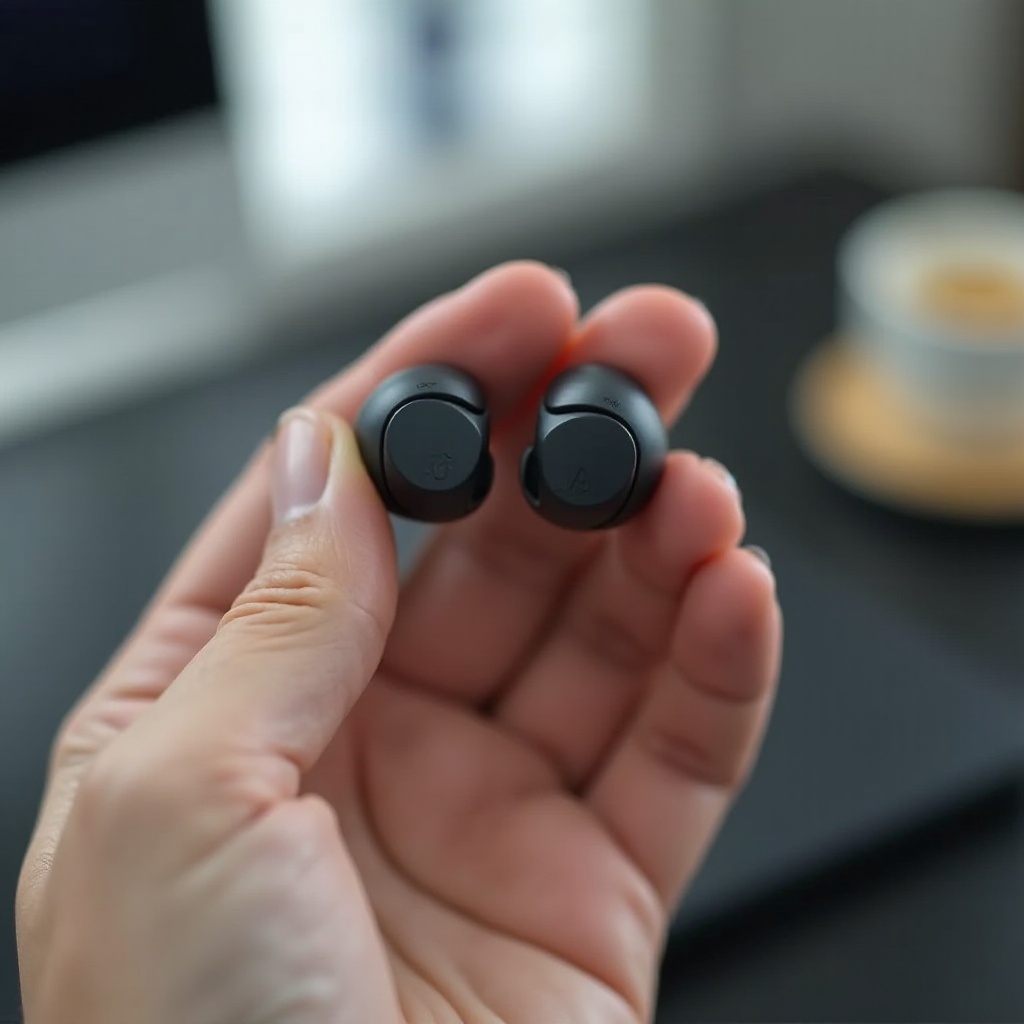
Factory resetting is a crucial process that wipes all configurations, often resolving problems caused by faulty settings or software bugs. If you’re experiencing connectivity problems, irregular battery life, or unresponsive touch controls, understanding when and why to execute a factory reset is vital to ensuring your earbuds function properly.
When to Consider Factory Resetting Your Pixel Buds Pro
Certain situations call for a factory reset. Persistent connectivity issues with your smartphone or laptop, degraded audio quality despite attempts to fix it, or unresponsive touch controls may all signal it’s time for a reset. Additionally, before selling or gifting your earbuds, resetting ensures all personal data is cleared.

Step-by-Step Guide to Factory Resetting Google Pixel Buds Pro
Here is the process for executing a factory reset, from preparation to verification:
1. Prepare by ensuring your Pixel Buds Pro is charged. Locate the reset button on your charging case.
2. Open the charging case lid with the Pixel Buds inside. Press and hold the reset button for about 15 seconds. Release when the LED blinks white and orange, indicating the reset is in progress.
3. Verify that the LED blinks white, confirming completion. Pair the earbuds with your device to ensure they are functioning correctly.
What to Do After a Factory Reset
Once completed, it’s important to follow these steps to restore your earbuds:
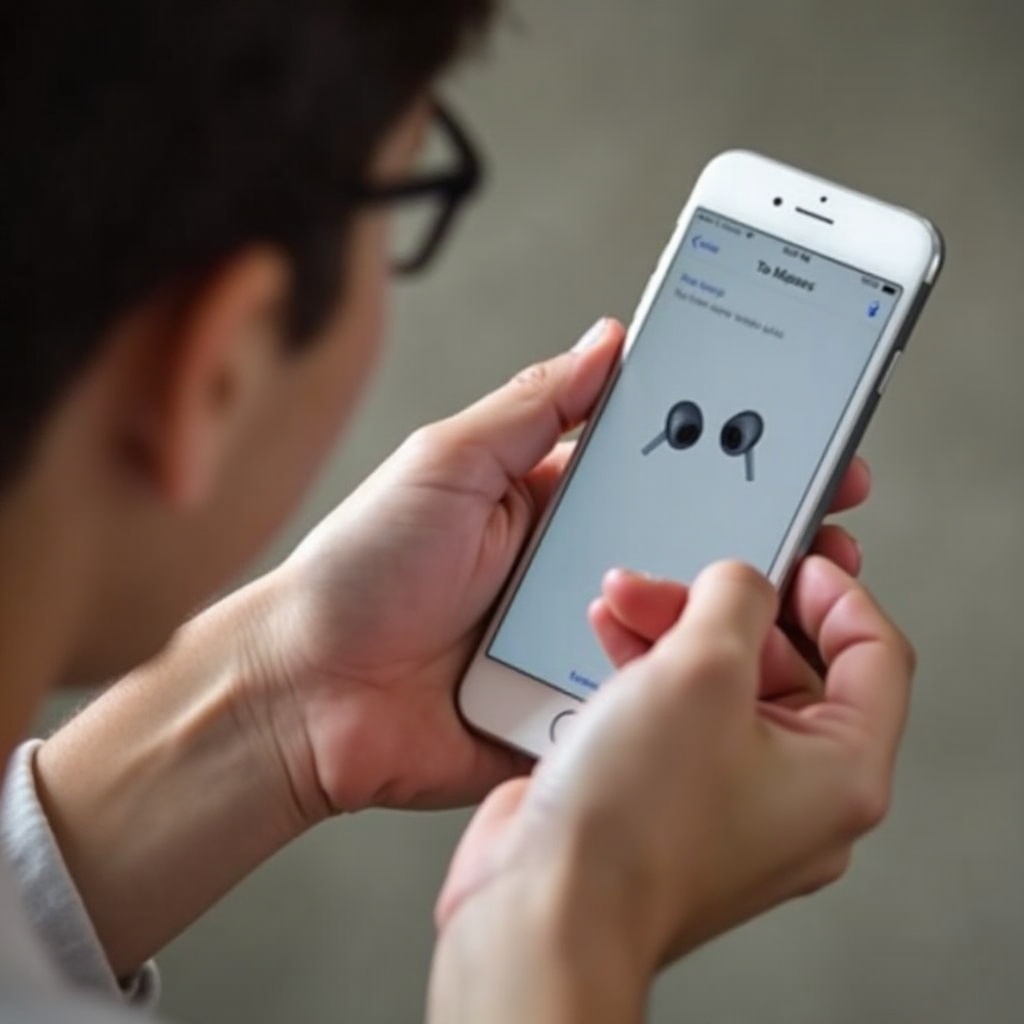
– Re-pair with your devices by opening the Bluetooth settings on your device and selecting Google Pixel Buds Pro from the list.
– Customize audio settings via the Pixel Buds app, adjusting touch controls and preferences as needed.
This step is crucial as the factory reset clears all previous configurations, requiring you to set up your earbuds as new for full functionality.
Troubleshooting Common Factory Reset Issues
If issues arise during or after a factory reset, consider the following tips:
– Ensure the charging case is working properly and has sufficient battery. Check the reset button for blockages.
– If the reset is unsuccessful, repeat the process or consult Google’s support resources for additional guidance.
Addressing reset issues promptly ensures the excellent performance of your Pixel Buds Pro.
Tips for Maintaining Optimal Performance of Your Google Pixel Buds Pro
Prevent frequent resets by maintaining your earbuds. Update the firmware through the Pixel Buds app to access new features and fixes. Regularly clean your earbuds to prevent decreased audio quality. Protect them from extreme temperatures and humidity, which can damage internal components.
Conclusion
Performing a factory reset on your Google Pixel Buds Pro is straightforward and restores various functions, helping you maintain their quality and performance. Reset them prudently and follow post-reset instructions for continued enjoyment.
Frequently Asked Questions
What should I do if my Pixel Buds Pro won’t reset?
If your Pixel Buds Pro won’t reset, check the charging case’s battery level and ensure the reset button is functional. Consult Google support if problems continue.
Will a factory reset delete all my paired devices and settings?
Yes, a factory reset clears all saved settings and paired devices, returning your Pixel Buds Pro to their original state.
How often should I perform a factory reset on my Pixel Buds Pro?
Perform a reset only when necessary, such as experiencing unresolved issues or preparing to sell. Regular resets without cause are typically unnecessary.