
Introduction
The Chromebook refresh button is an often underestimated feature that significantly contributes to a smoother and more efficient user experience. While many users might bypass its importance, understanding its full potential can transform your Chromebook interactions. This guide navigates the myriad uses of the refresh button, offering insights into maximizing your device’s functionality and resolving common glitches.

Understanding the Refresh Button on Chromebook
At its core, the refresh button functions similarly across devices—primarily intended to refresh or reload web pages. Chromebooks, known for their straightforwardness and efficiency, utilize this button for more than just web page refreshing. It’s a pivotal tool for troubleshooting minor hitches and maintaining system health by occasionally refreshing the device’s software environment. Its operation aligns seamlessly with the simplicity and efficiency trademarks of the Chromebook.
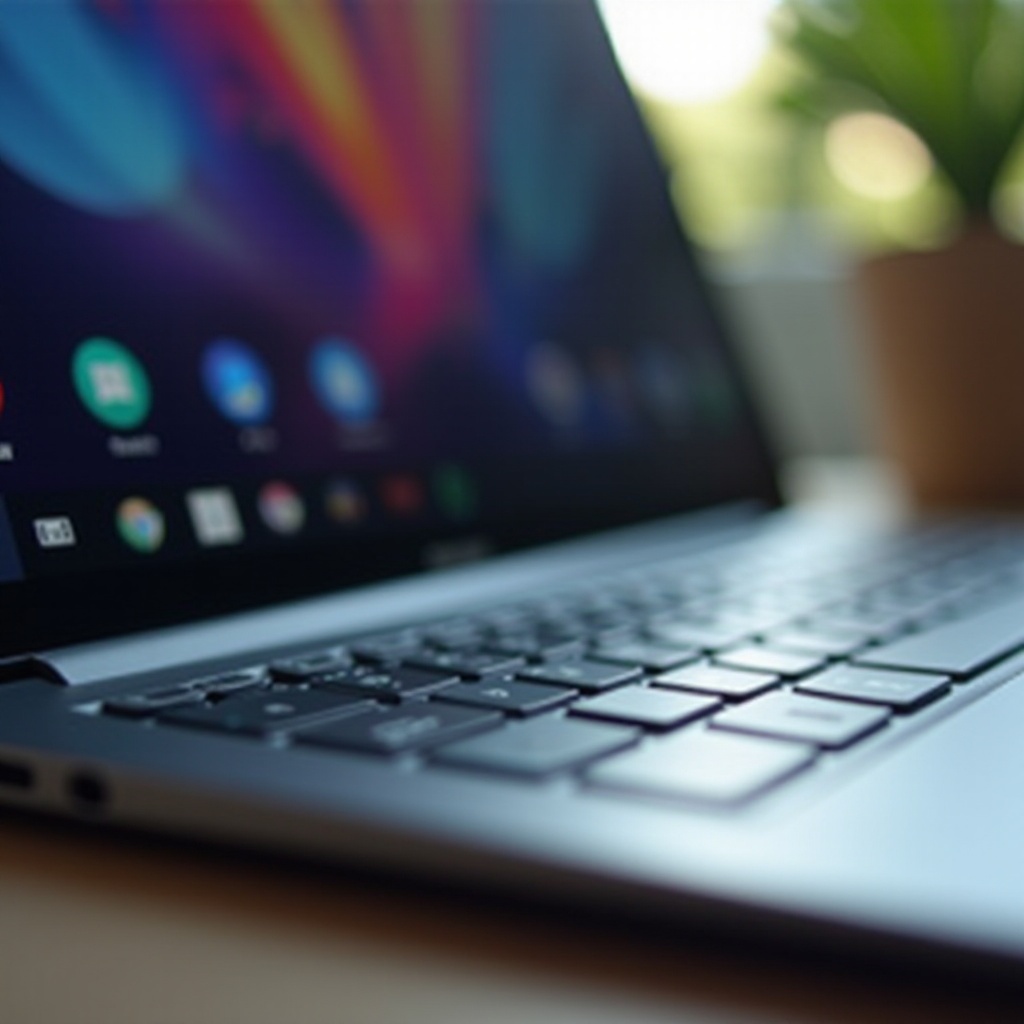
The Location and Appearance of the Refresh Button
For users new to Chrome OS, locating the refresh button is fundamental. On most Chromebook keyboards, you’ll find it marked by a circular arrow, typically situated in the top row among the function keys. This strategic placement emphasizes its role in daily Chromebook functions. Its easily recognizable icon amidst the top row’s minimalistic design is a clear nod to the Chromebook’s user-friendly nature, offering unobstructed accessibility.
Primary Functions of the Refresh Button
More than a mere tool for reloading pages, the refresh button brings several functionalities:
- Refreshing Web Pages: It provides an immediate page reload, aiding in accessing the most recent content and resolving simple page loading errors.
- Fixing Small System Glitches: This button offers an easy fix for minor system anomalies such as temporary freezes, helping restore the system’s optimal performance.
- Enhancing User Experience: By maintaining operational fluidity, the refresh button plays a key role in providing an uninterrupted user experience.
Grasping these diverse roles equips users with the knowledge to leverage their Chromebooks for both productivity and convenience.
Situations to Use the Refresh Button
Different situations may call for the strategic use of the refresh button. These include:
Refreshing Web Pages
Encountering non-responsive or outdated web content is common. Here, the refresh button is your go-to for a quick resolve, as it ensures access to the latest page version.
Fixing Small System Glitches
When dealing with minor system hiccups, such as frozen tabs, the refresh button provides a fast and effective solution, restoring system spring to its step.
Enhancing User Experience
Use it preemptively to maintain smooth transitions across your device’s operations, underscoring the button’s importance in contributing to seamless browsing experiences.
By recognizing these instances, users can appreciate the refresh button’s pivotal role in maintaining Chromebook efficiency and user convenience.

Shortcuts and Advanced Uses of the Refresh Button
To enhance your usage, it’s essential to incorporate keyboard shortcuts and comprehend advanced functions related to the refresh button.
Popular Keyboard Shortcuts
- Reload Page: Press the refresh button for an instant page reload.
- Full Screen Mode: Engage full screen by pressing
Ctrl+Refresh.
Combining with Other Keys for Efficiency
Mastering key combinations such as Ctrl + Shift + Refresh equips users with advanced capabilities, like taking unobtrusive screenshots.
Tips for Power Users
- Efficiency Boost: Integrate refresh shortcuts into regular routines for quicker task completion.
- Keyboard Layout Mastery: Understand the keyboard layout deeply for faster access to Chromebook’s performance features.
These methods open new doors for users to enhance their Chromebook mastery, significantly boosting productivity.
Troubleshooting: When the Refresh Button Isn’t Working
As versatile as it is, the refresh button can sometimes appear unresponsive. It’s essential to have alternative strategies at hand.
Alternative Solutions
- Restart Device: Rebooting often resolves unseen background processes that may be blocking the refresh button.
- System Updates: Pending updates can sometimes interfere, so check and install updates as needed.
Advanced Troubleshooting Tips
- System Diagnostics: Use built-in diagnostic tools for thorough fault detection and rectification.
- Verify Shortcuts: Ensure that no alterations have been made to your keyboard shortcuts, reverting any that might cause issues.
Seeking Professional Assistance
For persistent cases, professional support offers viable solutions. Visit the Chromebook Support site or reach out to certified technicians if problems remain unresolved.
Conclusion
The Chromebook refresh button extends far beyond its initial impression as a simple reload tool. It enhances browsing, elevates productivity, and serves as an essential troubleshooting ally. By understanding and mastering this button, users are empowered to maintain optimal device performance with minimal interruptions.
Frequently Asked Questions
Does the refresh button delete browsing history?
No, using the refresh button does not delete browsing history. It simply reloads your current page, ensuring the latest view without altering stored data.
What should I do if the refresh button doesn’t solve an issue?
Try rebooting the device or performing system diagnostics. If issues persist, consult professional assistance for further support.
How can I use the refresh button to reset hardware settings?
The refresh button alone doesn’t reset hardware settings, but pressing it with the power button during boot can reset some settings for troubleshooting.