Introduction
Losing a TV remote can be quite inconvenient, especially when you’re in the mood for some entertainment. While misplacing it may seem like a roadblock, there are several ways to regain control of your television. This article will guide you through alternative methods, such as using your TV’s manual controls, smartphone applications, smart home devices, and more. By exploring these solutions, you can ensure uninterrupted access to your home entertainment system.
Understanding Your TV’s Manual Controls
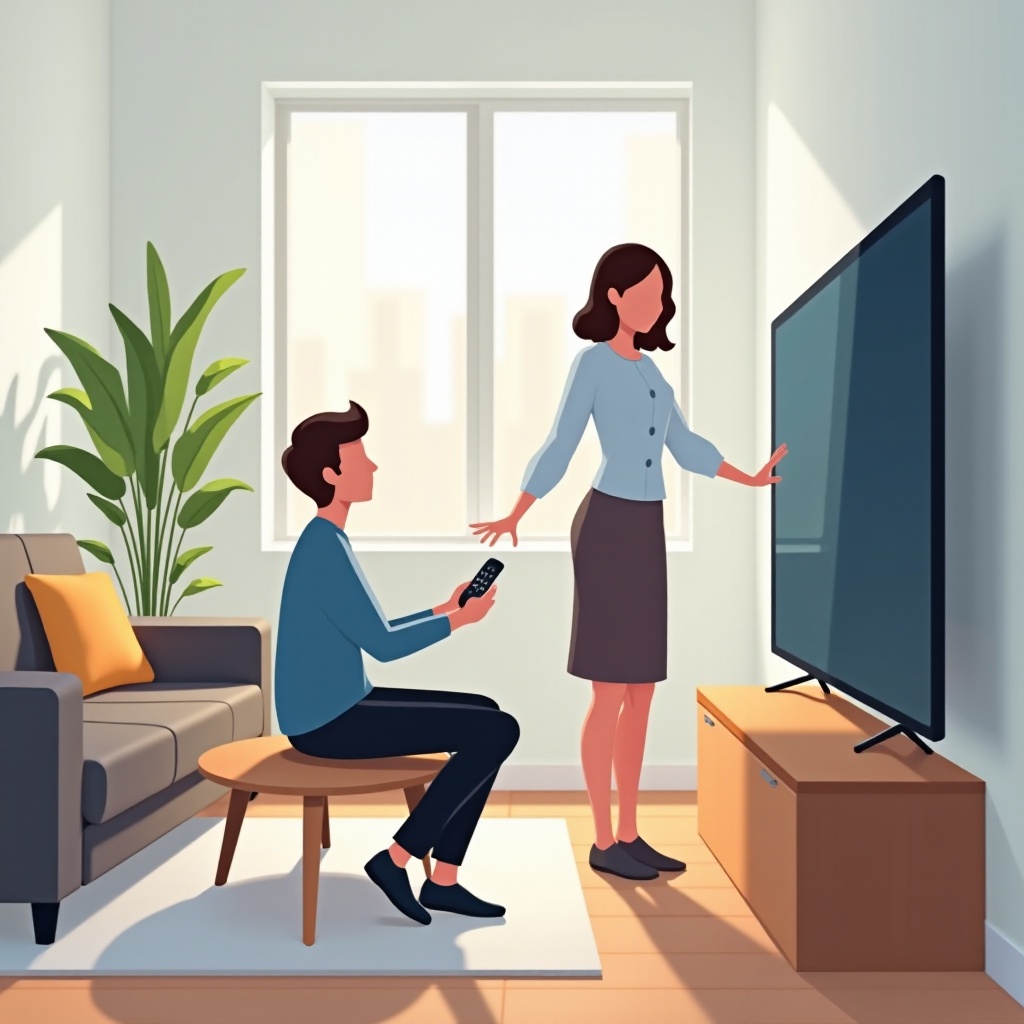
Explore the most straightforward solution before diving into advanced technologies—your TV’s manual buttons. Nearly all televisions have a set of physical controls that you can use for basic operations. Located typically on the side or at the bottom, these allow you to power the TV on or off, adjust the volume, and change the channels. The first step when your remote is missing is to familiarize yourself with these buttons, accessible through your TV’s user manual. You might find additional features, like built-in menu buttons, to help navigate settings. Though it may seem less convenient, this method guarantees a robust fallback.
By becoming adept at using manual controls, you’re laying a foundation for exploring more sophisticated options, such as smartphone apps.
Using Smartphone Apps as an Alternative
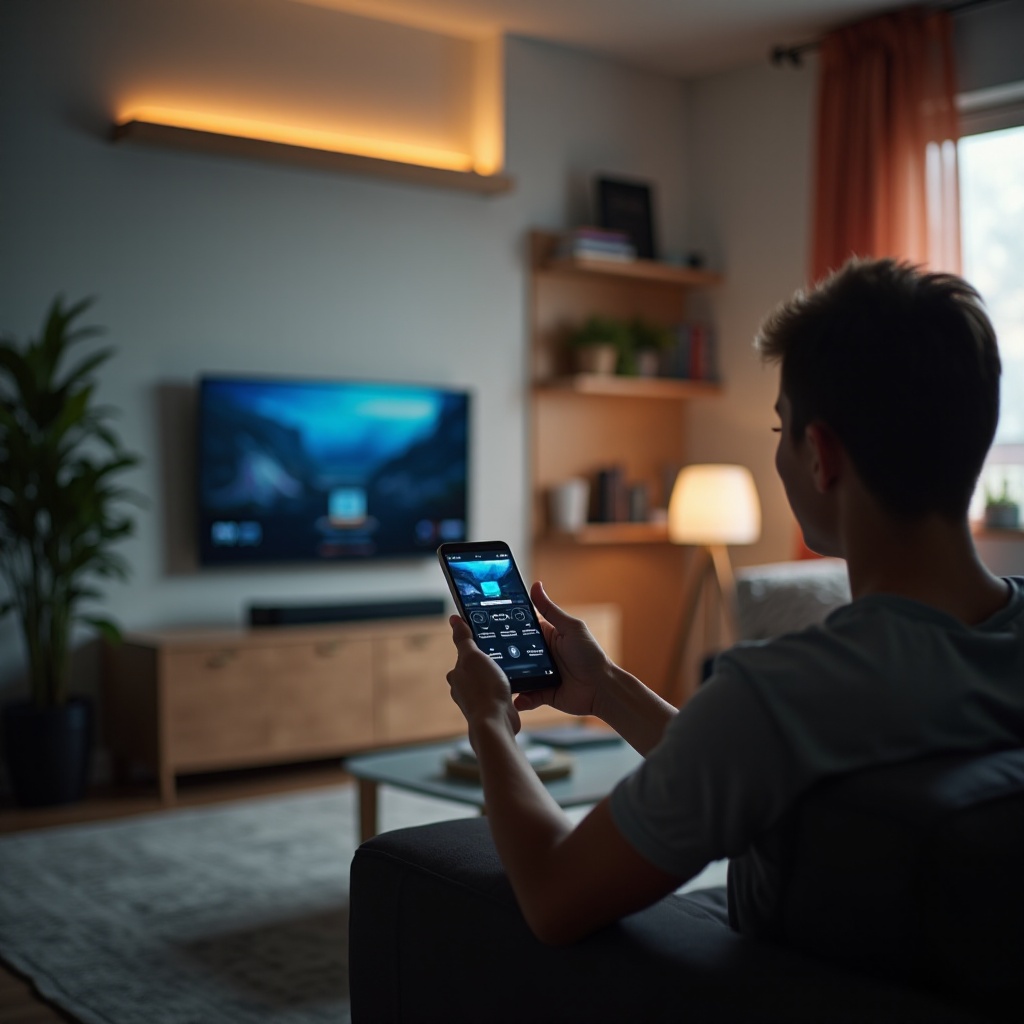
Smartphones have revolutionized many aspects of life, including turning into versatile remote controls. By using TV remote apps, you can navigate your TV with great ease.
Overview of Popular TV Remote Apps
Several apps, like Peel Smart Remote and AnyMote, allow you to access extensive remote control features right from your smartphone. Moreover, many TV manufacturers, such as LG and Samsung, provide their custom apps, which are generally compatible with both iOS and Android devices. This broad compatibility offers convenience to most smartphone users.
Step-by-Step Setup of a TV Remote App
Control your TV with a few taps on your smartphone by following these simple steps:
- Download a suitable app from the App Store or Google Play.
- Ensure both your TV and smartphone are on the same Wi-Fi network.
- Follow the in-app instructions to establish a connection with your TV.
- Once linked, utilize your phone to manage TV functions as if you had the physical remote.
This familiarity with app-based control lays the groundwork for a more thorough exploration of physical alternatives.
Exploring Universal Remote Options
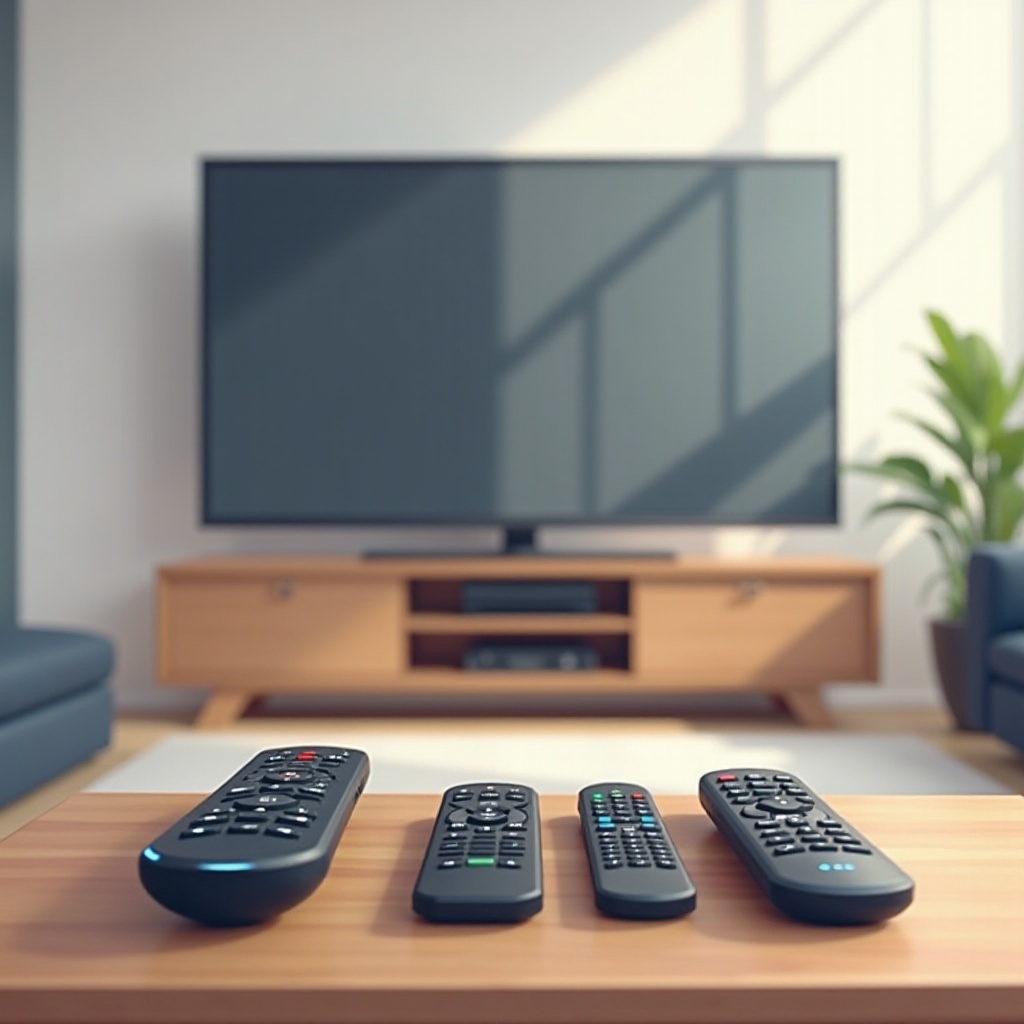
For those who miss the tangible feel of a remote, universal remotes offer an impressive alternative. They are not only multi-device compatible but a lifesaver for lost remote incidents.
What is a Universal Remote?
A universal remote is an adaptable device that can control numerous electronics, including TVs, DVD players, and more within your household. It’s an excellent solution if you habitually lose original remotes.
How to Program a Universal Remote for Your TV
With a universal remote handy, here’s how to make it your TV’s best friend:
- Turn on both your TV and universal remote.
- Press the specific button combination to initiate programming mode, as guided by the remote’s manual.
- Use the code search or manually input the code unique to your TV’s brand.
- Test the connection by operating your TV’s key functions.
After setup, this alternative becomes a steadfast backup, seamlessly integrating into your TV’s operational ecosystem.
Leveraging Smart Home Integration
For tech enthusiasts, connecting your TV with smart home systems introduces a novel control method through voice commands and smart routines.
Using Voice Commands via Smart Speakers
Devices like Amazon Echo or Google Home facilitate TV operation using just your voice. By linking the smart speaker system to the TV, you can use commands such as, ‘Alexa, turn on the TV’ for a truly hands-free experience.
Setting Up Smart Home Systems with Your TV
To integrate your TV within a smart home setup:
- Verify that your TV supports integration with smart systems.
- Use your smart speaker app for linking by following detailed in-app steps.
- Adjust voice commands tailored for television controls.
Smart home setups provide an efficient, futuristic approach to TV management, introducing you to an enhanced lifestyle of automation and convenience.
Utilizing Secondary Devices for TV Control
If you regularly use gaming consoles or streaming sticks, these can also double as excellent remote alternatives.
Gaming Consoles as Remote Replacements
Gaming consoles such as PlayStation or Xbox offer controllers that can effectively manage TV menus via HDMI-CEC technology, enabling seamless transitions between gaming and TV watching.
Using Streaming Devices as Alternatives
Streaming devices like Roku, Amazon Fire Stick, or Apple TV offer apps allowing control over both the device and the television. This comprehensive functionality streamlines your operations, greatly reducing the need for multiple remotes.
Conclusion
You no longer need to fret about misplacing a TV remote with the plethora of alternative solutions available. From accessing manual buttons to employing cutting-edge smart home systems, each option allows you to control your TV effortlessly. Whether you lean towards a tech-savvy smartphone app or the tangible familiarity of a universal remote, the choice remains yours. Customize your experience to guarantee the most seamless, enjoyable television experience, no matter the circumstance.
Frequently Asked Questions
Can I replace my TV remote with a universal remote?
Yes, a universal remote can replace your TV remote and control multiple devices, enhancing convenience.
How can I turn on my TV without a remote or buttons?
Most TVs can be turned on by pressing a power button located on the side or bottom of the TV frame.
Are smartphone remote apps compatible with all TVs?
Compatibility depends on your TV model and the specific app. Check the app’s compatibility list before downloading.