Introduction
Night mode on your iPhone is an essential feature designed to enhance your screen experience during the night. It significantly reduces the blue light emitted from your device, granting your eyes much-needed relief, especially in low-light settings. Plus, it contributes to better sleep quality, making it a must-use tool for every iPhone user aiming for healthier screen time. Dive into this guide to understand how to enable night mode on your device effectively and discover various customization options to tailor it to your specific needs.
What is Night Mode on iPhone?
Night mode on iPhone is designed to adjust the color output of your device’s display to warmer tones, thereby reducing the amount of blue light. Blue light is known to interfere with sleep by suppressing melatonin production, which is vital for quality sleep. By switching to a warmer display, night mode alleviates this issue, creating an ideal viewing experience when using your phone in the dark. This simple, yet effective, change can drastically improve how your eyes feel after prolonged screen usage at night.
How to Enable Night Mode on iPhone
Activating night mode is straightforward, and it significantly enhances your nighttime device usage. Here’s how:
- Open the ‘Settings’ app on your iPhone.
- Tap on ‘Display & Brightness.
- Select ‘Night Shift’ to access its settings.
- You can use ‘Schedule’ to set it from sunset to sunrise or manually enable it by tapping ‘Manually Enable Until Tomorrow.
Enabling Night Mode on iOS 17
For devices running iOS 17, there are enhanced customization options:
- Open ‘Control Center’ by swiping down from the upper-right corner.
- Long-press the ‘Brightness’ slider to reveal the ‘Night Shift’ button.
- Tap the button to toggle night mode on or off as needed.
Customizing Night Mode Settings
Tailor night mode to your comfort by adjusting the color temperature. Within the ‘Night Shift’ settings, move the slider towards ‘Less Warm’ for cooler tones or ‘More Warm’ for a more yellowish display.
Setting Up Automatic Night Mode
Automate your night mode schedule to suit your lifestyle. Navigate to ‘Settings’ > ‘Display & Brightness’ > ‘Night Shift,’ enable ‘Scheduled,’ and choose times that align with your daily routine or use the default sunset to sunrise setting.
Benefits of Using Night Mode on iPhone
Night mode is more than just a visual adjustment; it offers tangible health and device benefits.
Improved Sleep Quality
Night mode actively reduces your exposure to blue light, facilitating better melatonin production and, consequently, improved sleep quality. It’s a simple change with profound health benefits for users who spend time on their devices before bed.
Reduced Eye Strain
Experiencing less eye fatigue at night is another rewarding benefit. The warm tones decrease the strain on your eyes, providing a more restful experience while using your device in the evenings.
Enhanced Battery Life
While the primary focus is on eye health, using night mode has the added advantage of conserving battery life. By dimming the screen brightness, your device runs more efficiently, allowing you to use it longer.
Customization Tips for Night Mode
Optimize your use of night mode with these customization tips, ensuring it fits perfectly into your lifestyle.
Adjusting Brightness and Warmth
Navigate to ‘Settings’ > ‘Display & Brightness,’ and adjust the brightness and warmth sliders. Finding the right balance will make your device comfortable to use in any lighting condition.
Syncing with Dark Mode
Maximize comfort by using night mode alongside dark mode. Enable dark mode under ‘Settings’ > ‘Display & Brightness’ > ‘Appearance.’ This combination reduces glare and enhances readability in low-light environments.
Utilizing Night Mode with Focus Modes
For a complete nighttime setting, integrate night mode with Apple’s Focus modes. Customize your Focus settings to automatically enable night mode during relaxation or sleep-focused periods, ensuring an interruption-free environment.
Troubleshooting Common Night Mode Issues
While night mode is generally efficient, users might face some occasional hiccups. Here’s how to address them:
Night Mode Not Working: Quick Fixes
- Check for software updates in ‘Settings’ > ‘General’ > ‘Software Update.
- Restart your phone to resolve minor glitches.
Addressing Color Accuracy Problems
Sometimes, tasks that require precise color representation might not sync perfectly with night mode. To cope, quickly disable night mode via the Control Center.
Night Mode and App Compatibility
Issues with app compatibility are rare, as most apps nowadays provide decent support for night mode. Confirm your app is updated to leverage full integration with your device’s display settings.
Advanced Tips for Night Mode Users
Maximize every feature night mode offers with these advanced tips.
Night Mode Photography Tips
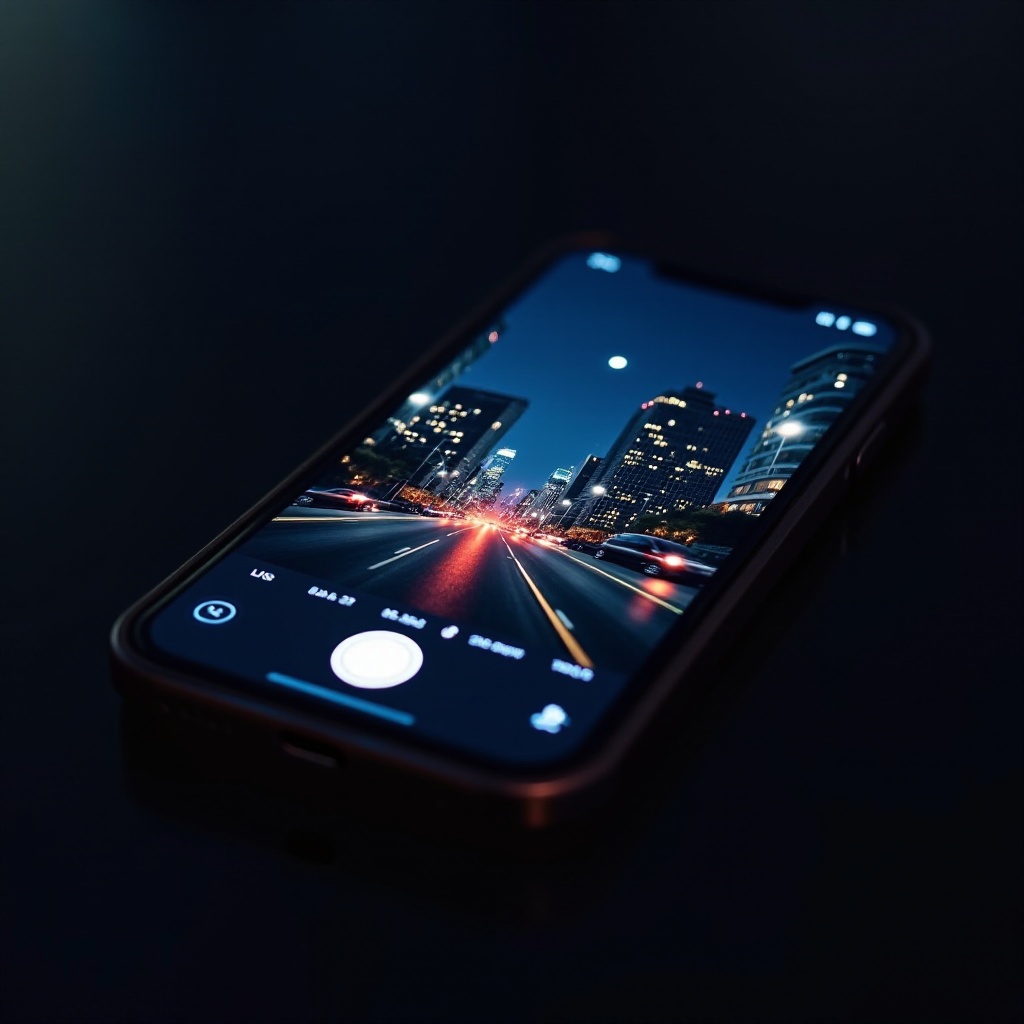
Night mode is also available for photography, allowing for better low-light shots:
- Use a tripod to stabilize your shots.
- Activate night mode in the Camera app to enjoy enhanced image quality.
Using Night Mode for Different Environments
Adjust night mode for various settings. For dimly lit areas, increase brightness slightly for better visibility, making your device adaptable in any environment.
Optimizing Night Mode for Reading
Night mode, paired with apps like Apple Books, makes reading in the dark pleasant. In Apple Books, switch to dark mode to ensure a seamless and relaxing reading experience.
Conclusion
Night mode is a powerful feature designed to improve not just your iPhone usage but also your overall well-being. By reducing blue light exposure, it helps foster better sleep conditions and reduces digital eye strain. As you optimize and tweak night mode to your liking, enjoy a healthier, more comfortable digital experience.
Frequently Asked Questions
How does Night Mode affect battery life?
Night mode conserves battery by reducing screen brightness, extending usage time.
Can I use Night Mode with third-party apps?
Yes, night mode is applied system-wide, affecting all apps including third-party ones.
Does Night Mode really help with sleep?
Night mode reduces blue light, aiding melatonin production, leading to better sleep.