Introduction
Keeping track of your Apple Watch is crucial in maintaining its security and accessibility. Despite best efforts, situations may arise where you misplace it. Fortunately, Apple provides effective tools to help you locate your Apple Watch using your iPhone. This guide will walk you through how to ping your Apple Watch from your phone, ensuring you remain connected with ease.
Understanding Apple Device Connectivity
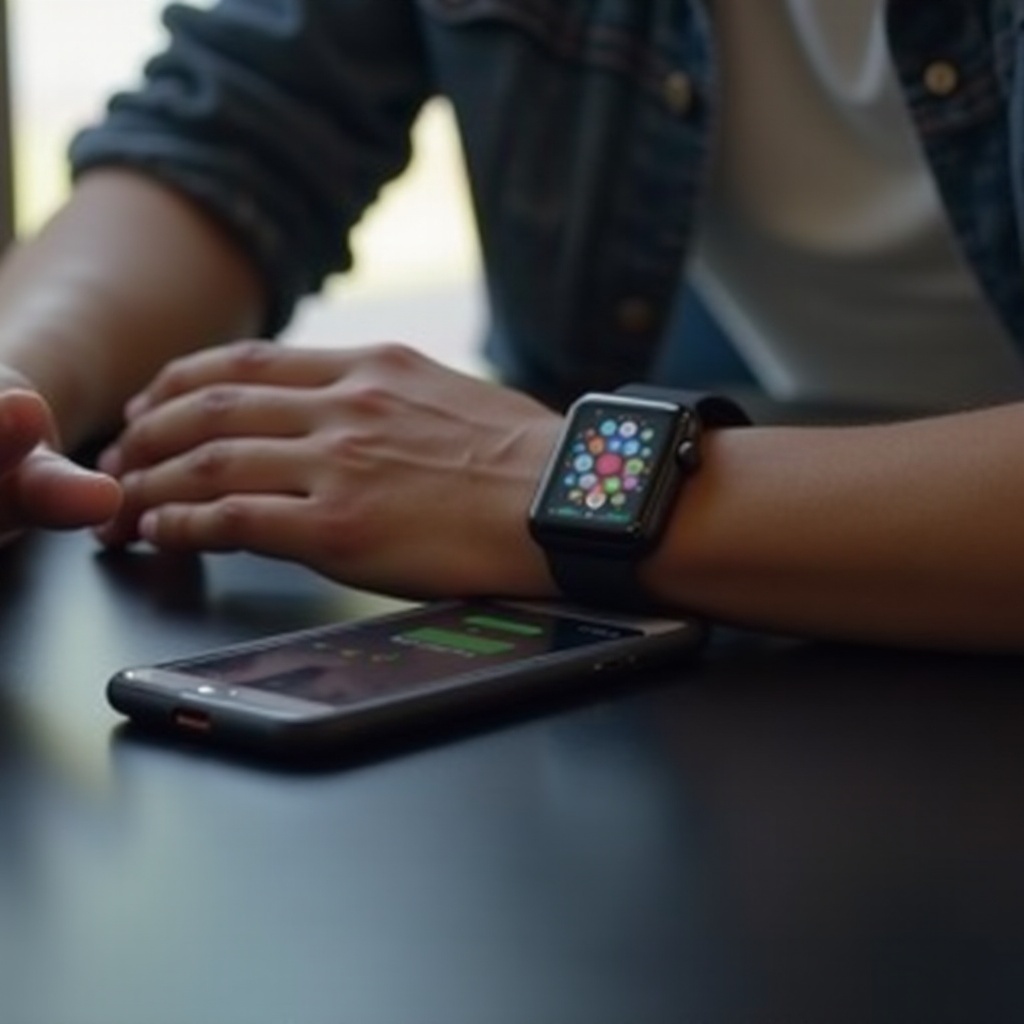
Before utilizing the ability to ping your Apple Watch, it’s important to comprehend the connectivity between Apple devices. Apple Watch and iPhone operate using Bluetooth for nearby communication and Wi-Fi for longer distances.
Bluetooth ensures your devices communicate when in range, while Wi-Fi maintains connections over larger distances, ensuring seamless interactivity. At its core, iCloud plays a key role by synchronizing data and enhancing location services within the Find My app. With this foundational understanding, you’re well-prepared to efficiently manage your Apple devices.
How to Ping Your Apple Watch from Your iPhone
Armed with the knowledge of device connectivity, you’re ready to put it into practice. Pinging your Apple Watch from your iPhone is made simple by Apple’s intuitive interface.
1. Open the Find My app on your iPhone.
2. Select ‘Devices’ and tap on your Apple Watch.
3. Tap ‘Play Sound’ to ping your watch.
Following these easy steps allows you to locate your device effortlessly.
Should you encounter problems, troubleshooting measures include:
– Ensuring both devices have Bluetooth enabled.
– Performing a restart on both devices to refresh their settings.
– Checking for software updates to maintain optimal connectivity.
Mastering these steps facilitates smoother daily interactions with your Apple gadgets.
Utilizing the Find My App for Enhanced Location Tracking
The Find My app offers functionalities beyond a simple sound ping, offering comprehensive location tracking across your Apple ecosystem.
The app ensures centralized control, allowing you to monitor multiple Apple devices from one platform.
Customize alerts to notify you when your watch exceeds a defined range, assisting in preventative security.
By utilizing the Find My app to its full potential, you’re equipped with real-time tracking and peace of mind, even when exploring unfamiliar places.
Security Features and Best Practices for Your Apple Watch
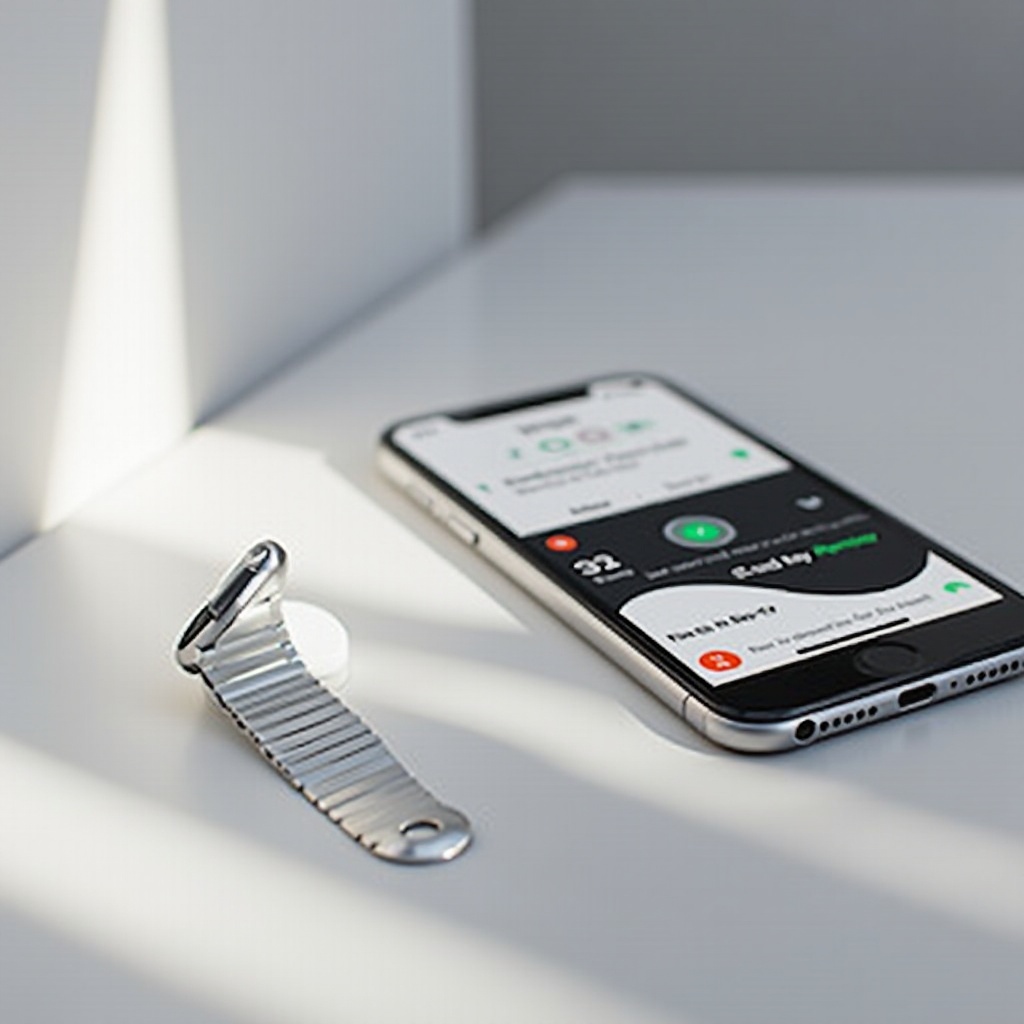
Device security transcends mere location tracking and expands into protective measures that Apple has made readily available.
Preventive steps include consistently enabling Bluetooth for live tracking, setting alert notifications for unauthorized device movement, and leveraging remote lock and erase options when necessary.
Activating these security features ensures the safety of your sensitive data if the device is beyond recovery.
Expert Tips and User Recommendations
Expert insights and user experiences can offer additional valuable information. Here are some tips to enhance your device usage:
-
Regularly Update Software: Maintain device software updates to resolve potential connectivity issues. Updates are key in fixing small bugs that can affect device interactions.
-
Engage with Apple Support: Make use of Apple Customer Support for personalized troubleshooting if problems persist, harnessing their vast resource network beyond basic manuals.
Sharing these tips creates an engaging community, allowing users to benefit from each other’s experiences and maximize their use of the Apple Watch.
Conclusion
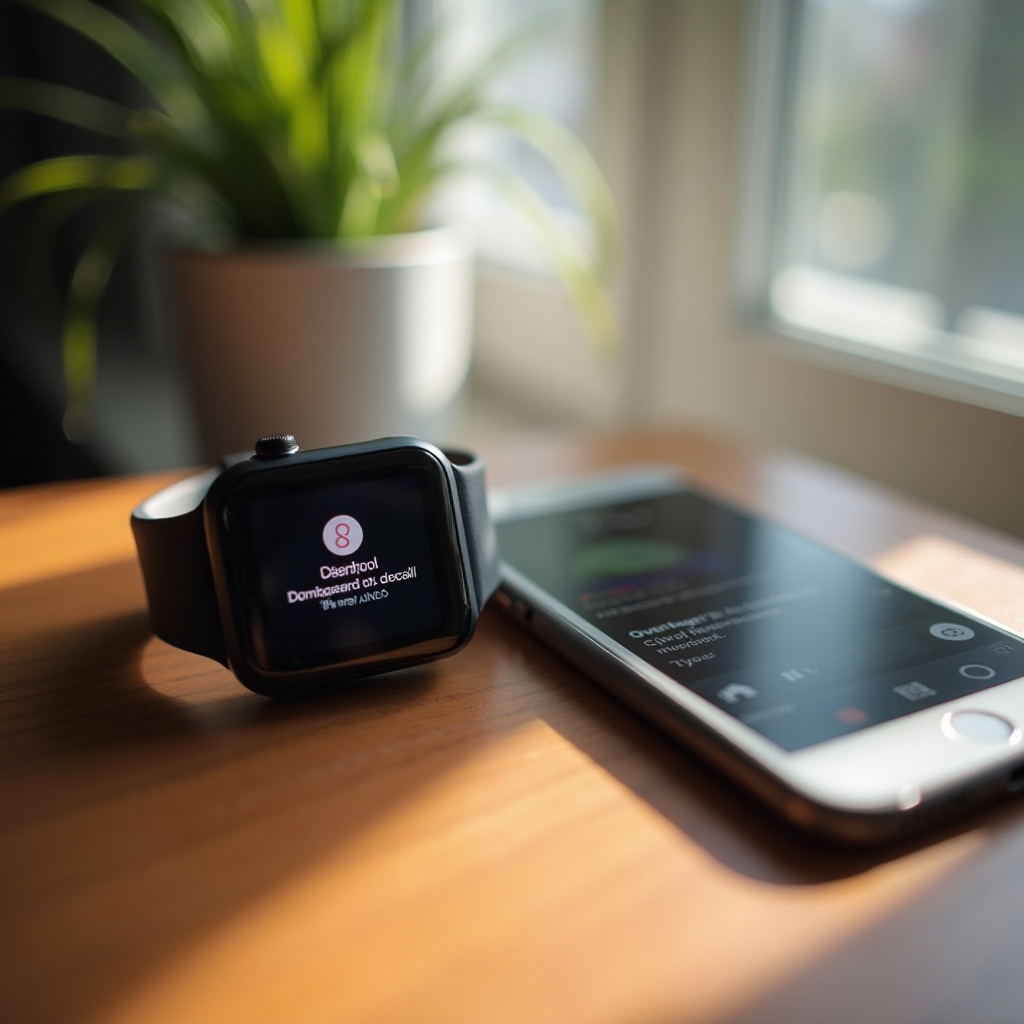
Incorporating device management practices enhances your ability to effectively ping your Apple Watch from your phone. By combining seamless connectivity and robust security features, you secure both your device and personal data. Embrace these technologies and practices for maximum peace of mind and efficiency.
Frequently Asked Questions
Can I locate my Apple Watch if it is dead?
Yes, the Find My app can show the last known location before the battery died.
How far can I be from my Apple Watch and still ping it?
You can ping your Apple Watch regardless of distance if connected to Wi-Fi and using the Find My app.
What should I do if my Apple Watch does not appear in the Find My app?
Ensure your Apple Watch is connected and signed into iCloud. Contact Apple Support for further assistance if issues persist.