Introduction
Experiencing issues with your Nintendo Switch not charging on the dock can be frustrating for gamers eager to dive into their favorite titles. This blog will guide you through understanding the root causes of these charging issues and provide practical solutions and maintenance tips to ensure your console remains powered and ready for your next gaming session.
Common Causes of Dock Charging Issues
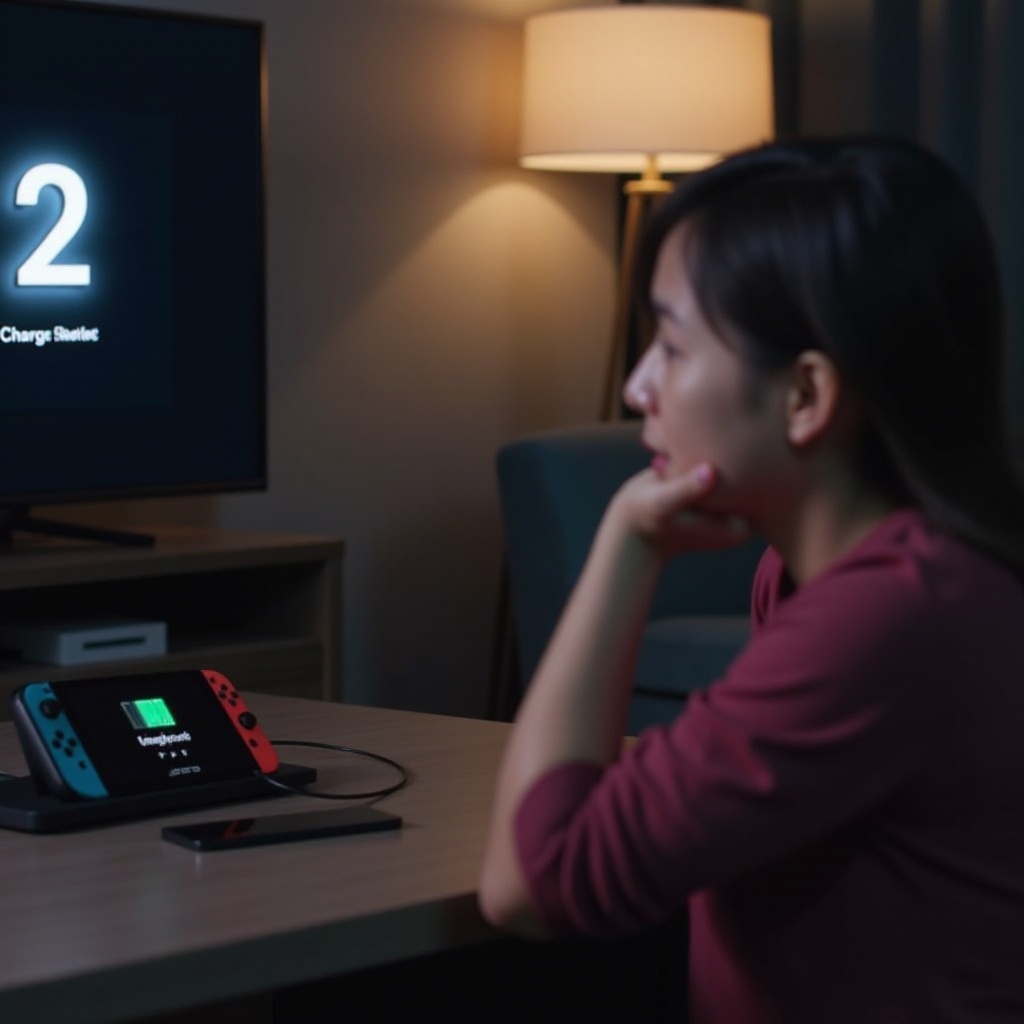
Nintendo Switch owners often face docking issues due to multiple factors, ranging from simple user errors to more complex technical concerns. Let’s explore some common causes:
- Faulty Power Supply: This is often the simplest culprit. An unstable or incorrect power supply can impact the flow of electricity to your dock.
- Loose Connections: Over time, cables can become loose or damaged, affecting charging capabilities.
- Dock Hardware Malfunctions: Internal issues within the dock itself may prevent your Switch from charging correctly.
Understanding these initial aspects lets us delve deeper into troubleshooting and resolving these problems efficiently, taking on each issue methodically as we aim for a consistent charging process.
Basic Troubleshooting Steps
Before considering any advanced solutions, it’s essential to perform basic troubleshooting steps that might resolve charging issues.
- Check Power Supply and Connections: Ensure that the power adapter is firmly connected to a workable power source.
- Inspect Dock Hardware: Examine the dock for any physical damage or dirt that might affect the connection.
- Reset the Nintendo Switch: Sometimes, a simple reset can resolve software glitches that affect charging. Hold the power button for several seconds, select ‘Power Options,’ and then choose ‘Restart.
These steps often resolve minor issues and create a smooth transition to more advanced troubleshooting if needed so that users can face complex scenarios with more in-depth understanding and preparation.
Advanced Solutions for Charging Problems
If basic troubleshooting doesn’t solve the issue, consider these advanced solutions:
- Update Software and Firmware: Outdated software can cause compatibility problems. Navigate to ‘System Settings,’ then ‘System,’ and ‘System Update’ to ensure your Switch is running the latest firmware.
- Replace Dock or Cables: If your dock or cables are damaged, consider investing in replacements. Authentic Nintendo products ensure compatibility and reduce the chances of further issues.
Resolving these deeper concerns requires attentiveness and sometimes investment, but it’s vital for a seamless gaming experience. With deeper understanding gained, move ahead to maintain the operational state.
Preventative Maintenance Tips
Taking preventative measures helps maintain optimal performance and extend the lifespan of your Nintendo Switch.
- Regular Cleaning and Upkeep: Dust and debris can accumulate over time. Regularly cleaning your dock ensures consistency in charging and device operation.
- Monitoring System Updates: Enable automatic updates to keep your software up-to-date. This preserves functionality and guards against sudden issues.
By incorporating these practices, future problems are minimized, allowing for uninterrupted gaming experiences. Such preventative actions mean users spend more time playing and less time troubleshooting.
When to Seek Professional Help
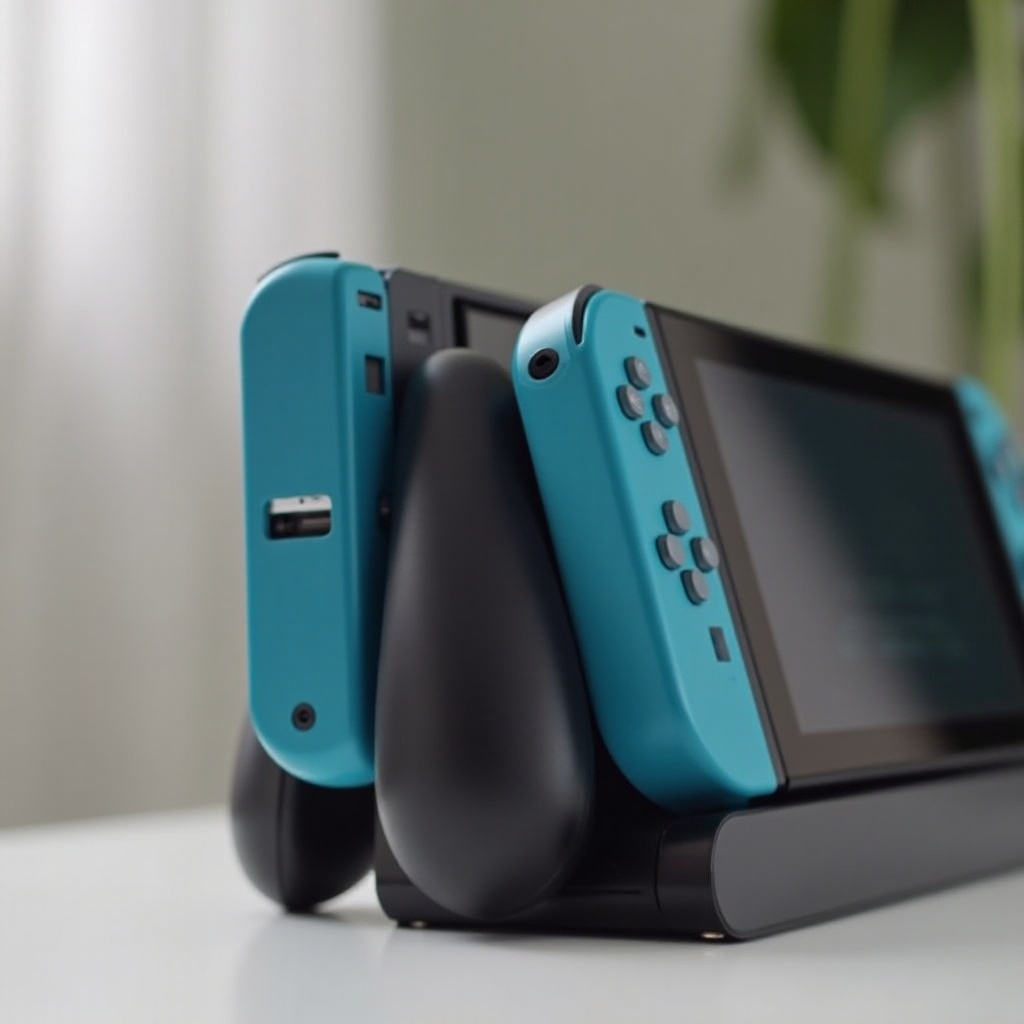
If you’ve tried everything outlined above and your Nintendo Switch still won’t charge on the dock, it might be time to seek professional assistance. Persistent non-charging issues might indicate deeper hardware malfunctions. Consult Nintendo’s support team or authorized service providers for diagnostics and solutions.
Conclusion
Ensuring your Nintendo Switch charges effectively on its dock involves understanding potential causes, performing due troubleshooting, and applying preventative measures. Addressing charging issues with these insights and techniques ensures your console remains in top condition for your gaming adventures.
Frequently Asked Questions
Why does my Switch charge fine with a cable but not on the dock?
This typically indicates a problem with the dock or its connections, possibly requiring hardware inspection or replacement.
How can I tell if my dock is faulty?
Inspect the dock for physical damage or try charging with another console, which helps determine if the dock itself is malfunctioning.
What should I do if none of the troubleshooting steps work?
Consider reaching out to Nintendo’s support or visiting an authorized repair center for specialized assistance.