
Introduction
Customizing music settings on an iPhone can significantly enhance your listening experience. Whether you’re a music enthusiast looking to improve sound quality or just want a more organized playlist library, knowing how to adjust your device settings is essential. This guide walks you through various steps to tailor your iPhone’s music capabilities to best suit your preferences and fix common issues along the way.
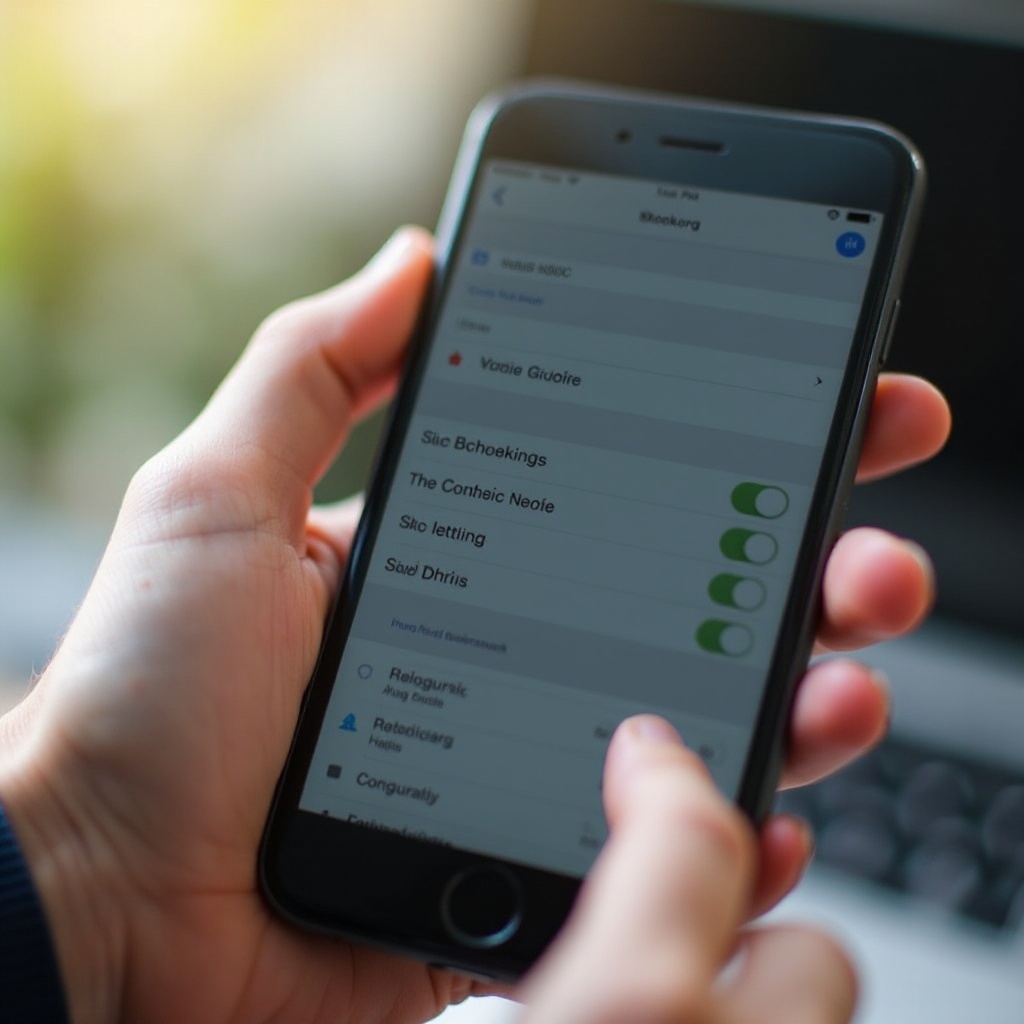
Accessing Music Settings on iPhone
Before diving into the settings, you need to know where they are. Here’s how to find them:
- Open the Settings app on your iPhone.
- Scroll down and select Music.
- Within the Music settings, you will discover various sections such as Playback, Downloads, and more.
Each section offers different customization options, letting you manage everything from sound quality to download preferences. By understanding what each category does, you can better control your device’s music functionality.
Enhancing Your Audio Experience
With the settings menu open, you can start improving your audio quality. Here’s how:
- Adjusting Sound Quality with EQ Settings:
- Go to Settings > Music > EQ.
-
Choose from various presets like Bass Booster or Rock, depending on your preference.
-
Customizing Audio Balance and Volume Limits:
- Navigate to Settings > Accessibility > Audio/Visual.
- Use the balance slider for personalized audio levels for each ear.
-
Under Settings > Music, set a volume limit to protect your hearing.
-
Settings for Different Headphone Types:
- When you connect headphones, additional options may appear depending on the model. Explore these under the Music menu for optimal sound settings.
Fine-tuning these settings doesn’t just improve the sound; it also enhances how you experience and interact with your device.
Utilizing Apple Music Features
Apple Music enriches your iPhone’s music experience by offering various features. Here’s how to make the most of them:
- Managing Playlists and Song Suggestions:
-
Apple Music provides curated playlists based on your listening habits. Activate these by going to Settings > Music > For You.
-
Personalizing Apple Music Preferences:
-
Customize your Apple Music profile in the app’s For You section. Update preferences for artists and genres you love.
-
Understanding and Adjusting Subscription Settings:
- Manage your Apple Music subscription through your account settings in the Music app. Whether you need to upgrade, cancel, or change your plan, it’s all in one place.
Exploring these features makes it easier to enjoy a dynamic music library suited to your tastes, ensuring an intuitive user experience.
Voice Control and Siri Customization
Voice control via Siri offers a hands-free way to manage your music, creating a seamless interaction that integrates with your daily activities. Here is how you can set up and customize Siri for your needs:
- Enabling Siri for Music Control:
- Access Settings > Siri & Search and toggle on Listen for ‘Hey Siri’.
-
Use Siri to play songs, adjust the volume, or open playlists without touching your phone.
-
Customizing Voice Commands and Response Settings:
- Change Siri’s language, accent, and feedback style under Settings > Siri & Search, tailoring it to better fit your preferences.
By using these controls, your music management becomes more efficient, freeing you to focus on other tasks while enjoying your tunes.
Organizing Your Music Library
A structured music library allows you to access your favorite tracks easily and discover new music without hassle. Here’s your blueprint:
- Tips for Organizing Playlists and Library:
-
Use the Library tab in your Music app to create and edit playlists. Arrange them by mood, genre, or event for easy access.
-
Sorting and Tagging Music for Easy Access:
- Utilize sorting options like Artists, Albums, or Songs in the Library for straightforward navigation.
- Mark tracks you enjoy with the heart icon to quickly find them later.
An organized library not only enhances accessibility but also enriches the way you interact with your music daily.
Troubleshooting Common Issues
Even a perfectly tuned music setting may encounter glitches. Here’s how to resolve common problems:
- Solutions to Playback Errors:
- Try restarting your iPhone to refresh the system’s performance.
-
Check for any iOS updates in Settings > General > Software Update to fix known bugs.
-
Handling Syncing Issues:
- Ensure all your devices are using the same Apple ID.
- To synchronize your library, make sure iCloud Music Library is turned on from Settings > Music.
These solutions should mitigate disruptions, keeping your music playback smooth and enjoyable.
Conclusion
Getting mastery over your iPhone’s music settings elevates your listening experience to a whole new level. From sound adjustments and Apple Music features to voice controls and troubleshooting, these adjustments offer a personalized music experience. Continue exploring and customizing settings to align perfectly with your unique preferences and needs.
Frequently Asked Questions
How do I reset my music settings on iPhone?
To reset, navigate to ‘Settings’ > ‘Music’, and toggle off options like ‘EQ’ and ‘Volume Limit’, then turn them back on.
Can I change music settings without an Apple Music subscription?
Yes, you can adjust settings like EQ and Volume Limit without a subscription.
How to enhance sound quality for different music genres?
Use different EQ presets under ‘Settings’ > ‘Music’ > ‘EQ’ to match the genre, such as Classical or Hip Hop, for optimal sound quality.