
Introduction
In the world of streaming, convenience is king. Reprogramming Roku remote buttons can significantly enhance your streaming experience by tailoring the device’s functionality to fit your preferences. Many Roku users are unaware of the flexibility their remotes can offer. By learning to reprogram, you can instantly launch apps or add shortcuts for specific features, making the remote a more efficient and personalized tool. This comprehensive guide will walk you through the steps needed to reprogram your Roku remote buttons, from understanding the types of remotes available to troubleshooting common reprogramming issues. Whether you’re tech-savvy or a beginner, this guide will equip you with the skills required to align your remote’s functionality with your viewing habits.

Understanding Your Roku Remote
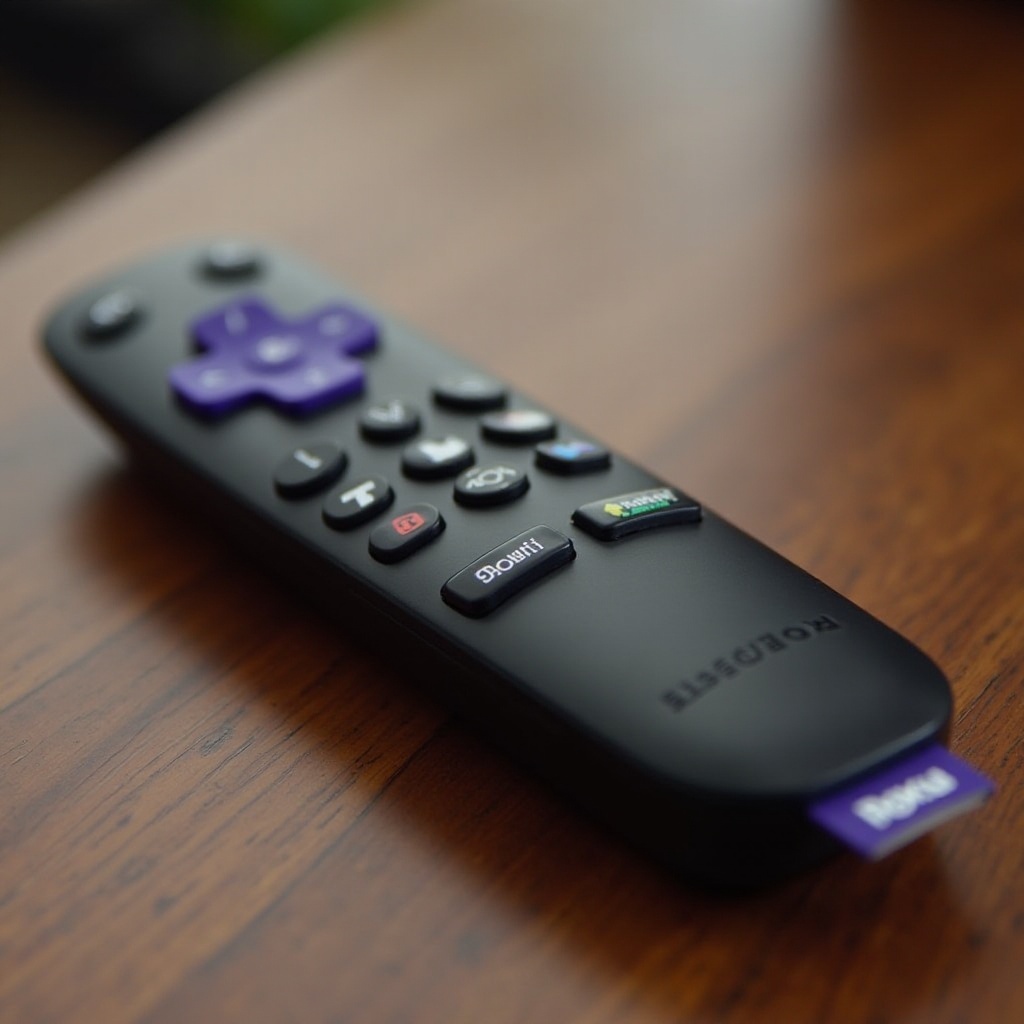
Before you start reprogramming your Roku remote, it’s essential to understand the types of remotes Roku offers. Familiarity with your particular model aids in recognizing its customization capabilities.
-
Simple Remote: This basic remote relies on infrared technology and needs a direct line of sight to operate. It generally lacks features like voice commands, limiting its reprogramming potential.
-
Voice Remote: A more advanced remote with voice command capabilities and a richer set of features. This type connects wirelessly, offering more flexibility in reprogramming.
Knowing your remote type is integral as the reprogramming potential varies by model. Typically, newer voice remotes have broader customization capabilities.
The Benefits of Reprogramming Roku Remote Buttons
Why take the time to reprogram your Roku remote? The advantages are clear and plentiful, offering a more seamless interaction with your device.
-
Efficiency: Quickly access your favorite streaming channels without navigating through multiple menus.
-
Customization: Tailor your remote controls to align with your viewing habits, providing a personalized user experience.
-
Quick Access: Program specific buttons for direct access to preferred apps or commands.
These benefits make reprogramming a worthy endeavor, making engagement with your Roku device faster and more intuitive.
How to Reprogram Roku Remote Buttons
Reprogramming Roku remote buttons may initially appear complicated, but it’s manageable with the right guidance.
Preparing Your Devices
-
Check Compatibility: Ensure your Roku device and remote support reprogramming. Most modern models do allow some level of customization.
-
Battery Check: Make sure the batteries in your remote are fully charged to avoid connectivity issues during reprogramming.
-
Software Update: Verify that your Roku device has the latest software update by navigating to Settings > System > System Update > Check Now.
Accessing the Roku Settings
-
Power On: Switch on your Roku device and ensure it’s properly connected to both your TV and WiFi network.
-
Open Settings Menu: On your Roku home screen, locate and enter the Settings menu.
-
Remote Section: Scroll down to choose ‘Remote & devices,’ then select ‘Remote.
Assigning New Functions to Buttons
-
Select Remote: Choose your remote from the list of available options.
-
Button Configuration: Look for the ‘Reprogram Buttons’ or similarly named feature. This nomenclature may differ between models.
-
Choose Functionality:
- Highlight the button you wish to reprogram.
-
Select a new function from a list of available commands or applications.
-
Save Changes: Confirm your selections to save changes and leave the configuration screen.
By following these straightforward steps, you can assign new functions to your Roku remote buttons, allowing them to perform tasks that suit your unique preferences.
Troubleshooting Common Issues
If you run into any trouble during the reprogramming process, these quick fixes may resolve your issues.
Fixing Button Response Problems
-
Unresponsive Buttons: Reset the remote by removing and then reinserting the batteries if buttons aren’t responding.
-
Incorrect Functionality: Double-check that the chosen commands are correct. Revisit the settings to make adjustments as needed.
Resolving Connectivity Issues
-
Intermittent Connection: Ensure nothing is obstructing the line of sight between the remote and Roku device. Reposition as necessary.
-
WiFi Disconnected: Confirm that your Roku device remains connected to your network. Restart the router if necessary.
Addressing these issues ensures smoother operation of your newly reprogrammed Roku remote.
Advanced Tips for Optimizing Your Remote
For even more flexibility, consider using the Roku mobile app, which serves as an additional remote with customizable features. Exploring third-party apps can sometimes offer advanced reprogramming functionalities beyond what the standard settings provide.
Conclusion
Reprogramming your Roku remote buttons can significantly enhance your streaming experience by offering a more tailored and efficient way to interact with your device. With a clear understanding and the right set of steps, you can simplify this task. Dive in, and enjoy the newfound convenience and personalization in your Roku experience.
Frequently Asked Questions
How do I reset my Roku remote to factory settings?
To reset, remove the batteries from your remote, unplug your Roku device, wait a few seconds, plug it back in, and reinstate the batteries. This is generally a soft reset.
Can I assign voice commands to reprogrammed buttons?
Currently, Roku remotes do not support assigning voice commands to reprogrammed buttons. However, you can activate voice commands using the designated button on the voice remote.
What should I do if my Roku remote stops working after reprogramming?
First, recheck the batteries and try a soft reset by removing and reinstalling them. Ensure the line of sight or WiFi connection is unobstructed. If issues persist, consult the Roku support page.