
Introduction
An Apple ID is crucial for every iPad user. It is the key to accessing a multitude of Apple’s services such as the App Store, iCloud, and Apple Music. Establishing an Apple ID is straightforward and significantly enhances your iPad experience by allowing you to download apps, sync your data, and manage subscriptions easily. This guide will take you step-by-step through the process of creating an Apple ID directly from your iPad, troubleshooting common issues along the way, and securing your account.

Understanding the Importance of an Apple ID
The Apple ID is not merely a login credential; it serves as your personal portal to Apple’s extensive ecosystem. With it, you can download apps, sync data across multiple devices, and manage various subscriptions effortlessly. Having an Apple ID is essential for seamless integration with Apple’s services, especially if you’re utilizing more than one Apple device.

Preparing to Create Your Apple ID
Before diving into the creation process, ensure you have the necessary personal information, including your email address and a secure password. A stable internet connection and an updated iPad software version are pivotal for a smooth setup experience. Being prepared will help streamline the process and mitigate potential errors.
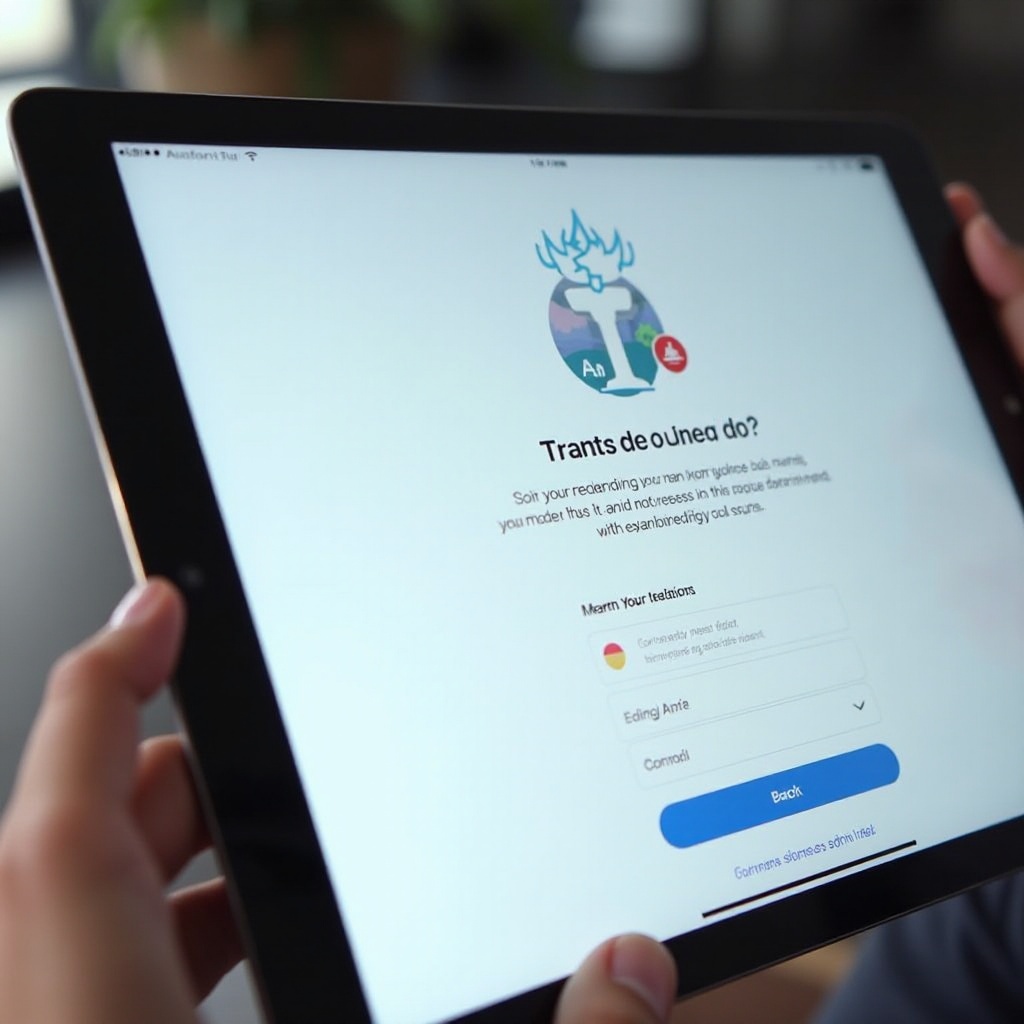
Step-by-Step Guide to Creating an Apple ID on Your iPad
- Access Settings: Begin by opening the Settings app on your iPad.
- Navigate to the ‘Apple ID’ Section: Scroll down to find the ‘Sign in to your iPad’ option.
- Enter Personal Information: Select ‘Create a new Apple ID’ and fill in your details, including selecting a robust password.
- Verify Email: After submission, check your email for a verification link and follow it to finalize your Apple ID setup.
Once you’ve completed these steps, your Apple ID is ready to use. With your new ID, you’ll be able to download apps, back up data, and access Apple’s range of services seamlessly.
Troubleshooting Common Issues
At times, users may encounter difficulties during setup, such as error messages or challenges meeting password criteria. Address these issues promptly:
- Error Messages Explained: Check that all information fields are accurately filled.
- Solutions to Common Problems: Adjust your password to include a combination of letters, numbers, and symbols until it satisfies the security prerequisites.
Pinpointing and resolving these issues swiftly will ensure a seamless setup process and prompt access to Apple services.
Securing Your Apple ID
Protecting your Apple ID is paramount as it contains sensitive personal information. Here’s how you can enhance security:
- Importance of a Strong Password: Your password should be unique and comprise a mix of lowercase, uppercase, numbers, and symbols.
- Enabling Two-Factor Authentication: This adds an extra layer of security, requiring verification from a secondary device before gaining access.
Securing your Apple ID is essential not just for your data’s safety but also for maintaining uninterrupted access to your accounts and purchases.
Maximizing iPad Usage with an Apple ID
With your Apple ID set up, delve into the diverse features and services it offers. Downloading apps from the App Store, syncing devices with iCloud, and customizing settings will enhance your user experience.
- Accessing Applications and Services: Explore a variety of applications tailored to boost your iPad’s utility.
- Personalizing Your Experience: Utilize your Apple ID to adjust settings, manage subscriptions, and integrate other Apple devices, creating a comprehensive ecosystem.
These steps will help you harness the full potential of your iPad, ensuring a rich and engaging user environment.
Conclusion
Creating an Apple ID for your iPad is a necessary step that unlocks unparalleled access to the Apple ecosystem. This guide aims to simplify the process for you, resolve any setup issues, and safeguard your account for full device functionality and personal data protection.
Frequently Asked Questions
Can I create an Apple ID without a payment method?
Yes, during setup, select ‘None’ under payment methods to create an ID without linking a payment method.
What should I do if I forget my Apple ID password?
Utilize the ‘Forgot Apple ID or password’ option on Apple’s sign-in page to reset your password safely.
Is it possible to create multiple Apple IDs on one iPad?
Yes, although it is advised to keep one ID per user to simplify security and data management.