
Introduction
Having clear sound during phone calls is essential for effective communication. Yet, many iPhone users face challenges with low ear volume, which can make even the simplest conversations difficult. These issues can stem from a variety of sources, including software glitches, hardware limitations, and incorrect settings. Here, we provide a comprehensive guide to understanding and resolving low ear volume on your iPhone, ensuring your calls remain clear and frustration-free.

Understanding the Problem
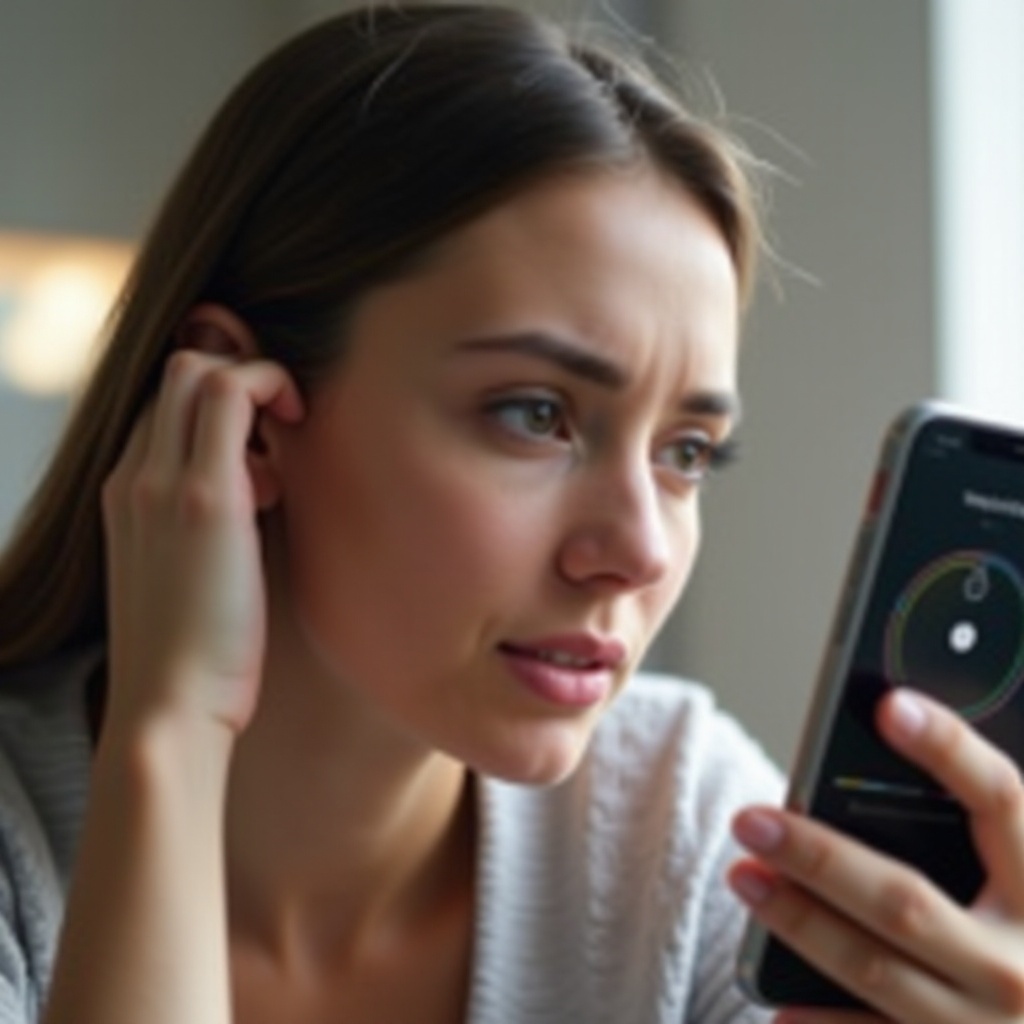
Low ear volume on your iPhone can result from several issues. Factors may include outdated software, obstructed speakers, or incorrect settings. It’s essential to differentiate between actual volume problems and those perceived due to external factors like ambient noise or incompatible accessories. Clarifying these distinctions enables you to target the right solution and apply effective fixes to enhance your call experience.
Basic Checks and Solutions
Before diving into complex troubleshooting steps, consider these initial checks that often resolve volume issues:
- Adjust the volume using the physical buttons on your iPhone during a call and ensure it’s at the desired level.
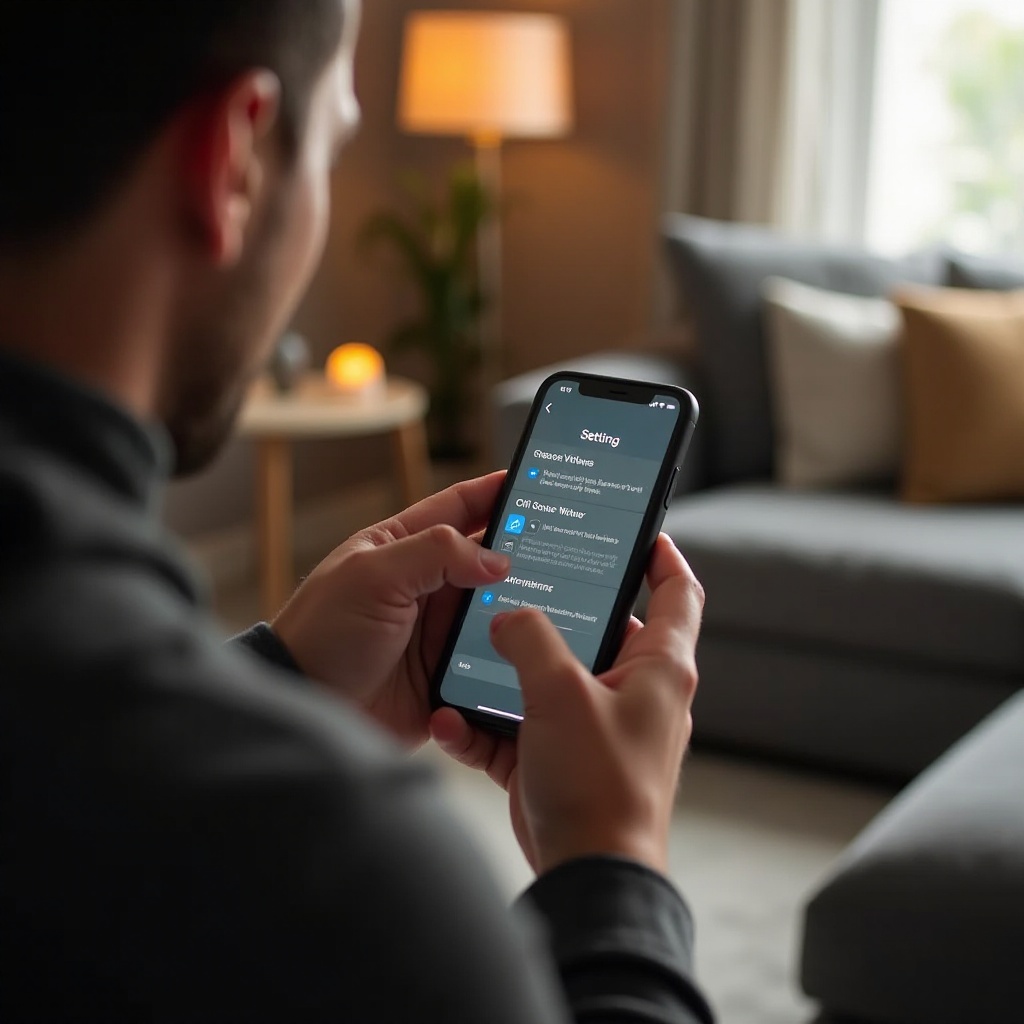
- Go to ‘Settings’ > ‘Sounds & Haptics’ to double-check sound configurations.
- Check for software updates by navigating to ‘Settings’ > ‘General’ > ‘Software Update.’ Keeping your iPhone’s software current can fix underlying glitches that affect volume.
- Clean speaker grills with a soft brush to remove dust or debris that might be blocking sound output.
When these simple steps aren’t enough, it’s time to explore more advanced solutions.
Advanced Solutions
Should basic adjustments fail to resolve the low ear volume on your iPhone, try these advanced methods:
- Reset Network Settings: Go to ‘Settings’ > ‘General’ > ‘Reset’ > ‘Reset Network Settings.’ This can clear out network-related bugs but will delete saved Wi-Fi networks, so keep passwords handy.
- Update iOS Software: A thorough iOS update may rectify deeper issues impacting sound. Check again under ‘Settings’ > ‘General’ > ‘Software Update.
- Restore iPhone Settings: If all else fails, consider restoring your iPhone to factory settings. Ensure you back up important data. Navigate to ‘Settings’ > ‘General’ > ‘Reset’ > ‘Erase All Content and Settings.
These procedures can effectively tackle persistent volume issues, though they typically require a more involved approach.
Preventive Measures
Once you’ve restored your iPhone’s volume settings to normal, maintaining optimal sound quality becomes a priority:
- Regular preventative maintenance helps ensure continued performance. Keep your device clean and conduct routine checks for software updates.
- Avoid exposing your iPhone to moisture or extreme temperatures, which could cause hardware issues.
- Only use accessories that are certified for compatibility with your device to prevent wear or software conflicts.
By adhering to these practices, you can avoid recurring issues and extend the lifespan of your phone’s hardware.
Exploring the Impact of Accessories
Accessories such as headphones and external speakers significantly influence your iPhone’s volume output:
- Review Headphone Compatibility: Confirm that your headphones are MFi (Made for iPhone) certified to ensure optimal functionality and sound quality.
- Check External Devices: Disconnect any external devices to determine if they’re affecting sound quality. Reconnect them one at a time to isolate potential issues.
Understanding the impact of these accessories on your phone’s audio can help maintain consistent sound quality.
User Reviews and Experiences
Insights from other iPhone users can offer valuable solutions:
- Many users have successfully fixed volume issues by simply performing a full reset or ensuring they’ve installed every software update.
- It’s a common misconception that volume issues always require hardware repairs. Often, settings adjustments or updates are sufficient.
These shared experiences demonstrate that with the right knowledge, solutions can often be simpler than anticipated.
Conclusion
Ensuring your iPhone delivers optimal ear volume is crucial for connecting seamlessly with others. By identifying the root causes and applying targeted solutions, you can enjoy the high quality and reliable communication experience that iPhones are known for. Regular maintenance and awareness of accessory compatibility play significant roles in preventing future volume issues. Stay proactive in handling your iPhone, and enjoy crystal-clear calls every time.
Frequently Asked Questions
How can I increase the volume of my iPhone earpiece?
Adjust the physical volume buttons during a call, ensure sound settings are optimized via ‘Settings’ > ‘Sounds & Haptics’, and clean the earpiece area.
Why is my iPhone volume so low during calls?
Common reasons include obstructions in the speaker, outdated software, or settings misconfigurations. Checking these can often restore normal volume.
Can a software update fix my iPhone’s low ear volume issue?
Yes, updates often contain patches for known issues and can resolve glitches affecting ear volume. Always keep your iPhone’s software current for optimal performance.